Widgets
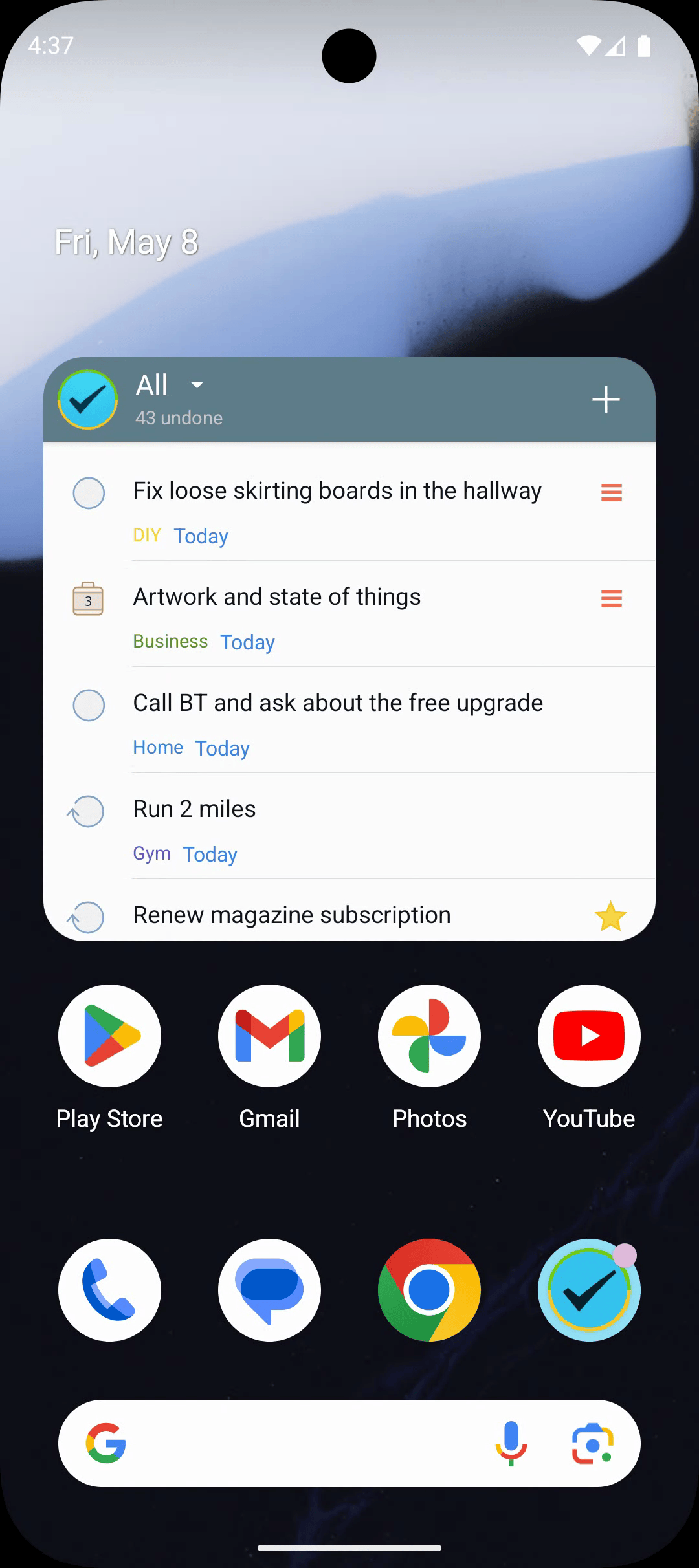
2Do for Android includes home-screen widgets so your tasks are always one glance away.

Available Widgets
- Task List — show a chosen list, Focus List, or saved view on the home screen.
- Transparent Task List — the same list widget with a transparent style.
- 2Do Undone Counter — show a compact count for the list or preset you choose.
Quick capture lives in Android's 2Do Quick Add Quick Settings tile, not in a home-screen widget. The notification drawer can also show today's tasks through Sticky Alert. See Android Integrations, Quick Add, and Notifications and Alarms.
Adding a Widget
- Long-press an empty area of your home screen.
- Tap Widgets (or the
+icon, depending on your launcher). - Find 2Do in the list.
- Drag the widget you want onto the home screen.
- When you drop it, 2Do asks which list or preset to show.
Pin a Task List widget for Today to your primary home screen. Use the 2Do Quick Add Quick Settings tile for fast capture from the notification shade.
Widget Settings
Task List widgets let you choose which task view they should show. The transparent widget is useful when you want the list to blend into your wallpaper or launcher theme. The Undone Counter widget asks which saved view it should count.
Make a Smart List for Quick wins (Duration ≤ 15 minutes, not paused) and pin it as a widget — perfect for filling a 10-minute gap between meetings.
Quick Settings Tile
The 2Do Quick Add tile is a Quick Settings tile — a one-tap shortcut that lives in Android's notification shade alongside Wi-Fi, Bluetooth, and Do Not Disturb. Tapping it opens Quick Add for fast capture without unlocking back into 2Do.
To add the tile:
- Pull down twice from the top of the screen to expand Quick Settings.
- Tap the edit (pencil) icon.
- Drag 2Do Quick Add from the available tiles into the active set.
The tile is separate from 2Do's home-screen widgets: widgets show task lists and counters; the tile launches a capture surface.
Refresh and Sync
Widgets refresh when 2Do updates task data, when sync runs, or when Android schedules a refresh. If a widget looks stale, open 2Do once — Android will refresh the widget after the app updates its task data.
Protected Lists
If a protected list is locked, 2Do can hide protected content from home-screen widgets and notifications. Control this from Settings > Privacy > Password protect lists > Widgets & Notifications.