Projects and Checklists
2Do has three structures for breaking work into smaller pieces: Projects, Checklists, and Sub-Tasks. They look similar but serve different purposes.
Tasks and Sub-Tasks
A regular task can carry an inline checklist of sub-tasks. Sub-tasks live entirely inside the parent — best when children are tiny and only meaningful in context. If you want each child to act like a real task with its own due date, alarm, or tag — promote to a Project.
Projects
A Project is a parent that contains real tasks. Each child carries its own properties and shows up individually in your Focus Lists.
Creating a Project
- Open the drawer →
[+]→ New Project. - Or convert an existing task: open the editor → overflow (
⋮) → Convert to Project.
Project View
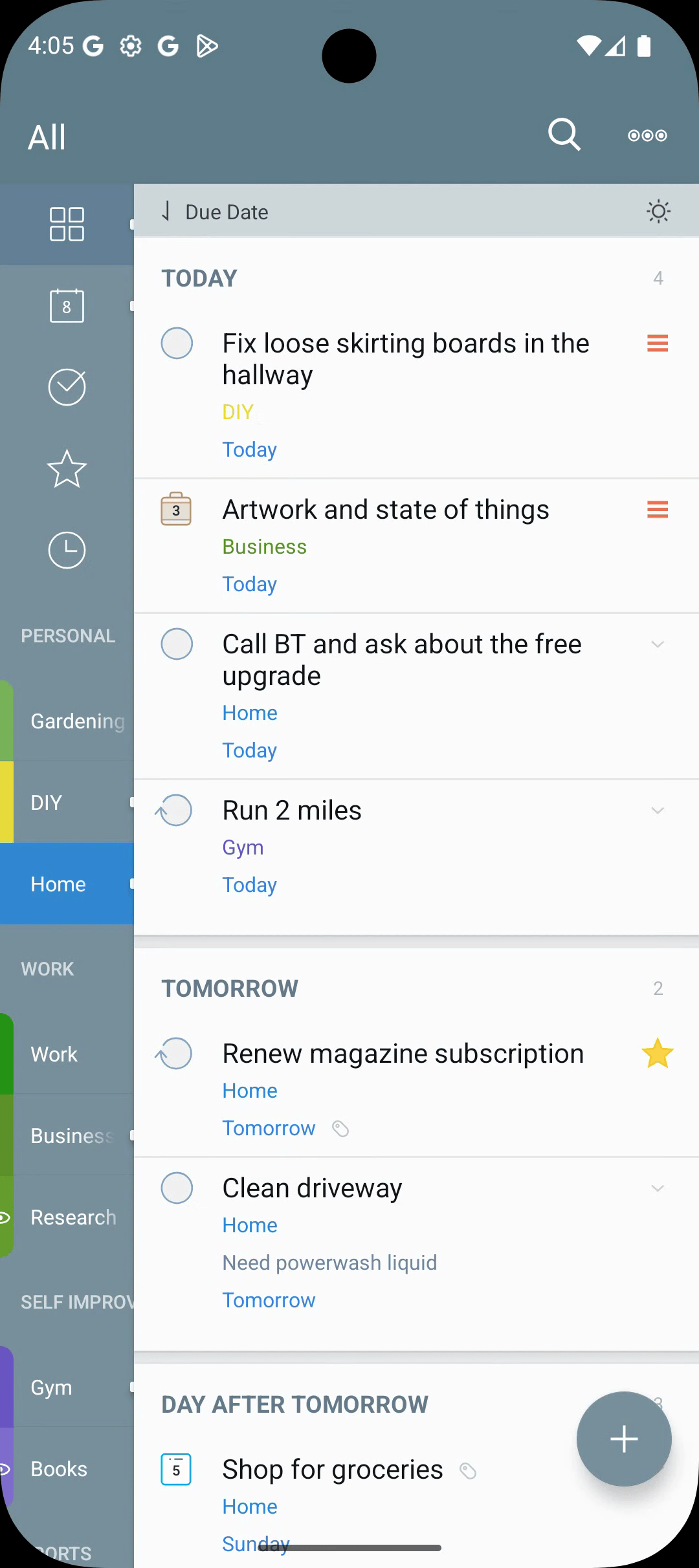
When you're inside a project, tap the overflow menu → Toggle Project View to focus only on the work inside this project. The rest of the list collapses out of view.

Checklists
A Checklist holds items — titles that can be checked off and tagged, but don't carry their own dates — they inherit scheduling from the checklist. The whole checklist behaves like one task in your Focus Lists.
Creating a Checklist
- Drawer →
[+]→ New Checklist. - Or convert a task → overflow → Convert to Checklist.
Converting Between Types
Use the editor's overflow menu → Convert to switch between Task / Project / Checklist. Converting Project → Checklist drops per-child properties and asks for confirmation first.
Start with a simple Task. Promote to a Project only when you find yourself wanting per-child dates or alerts.
Behavior in Focus Lists
- Project children appear individually.
- Checklist parents appear as a single item.
- Sub-tasks stay nested.