The 2Do Screen
2Do for Android follows familiar Android conventions — a navigation drawer for lists, a primary task surface, and a floating action button for capture. The main workspace uses sliding panels so you can move between Lists, Tasks, Tags, Nearby, and the editor without losing your place.
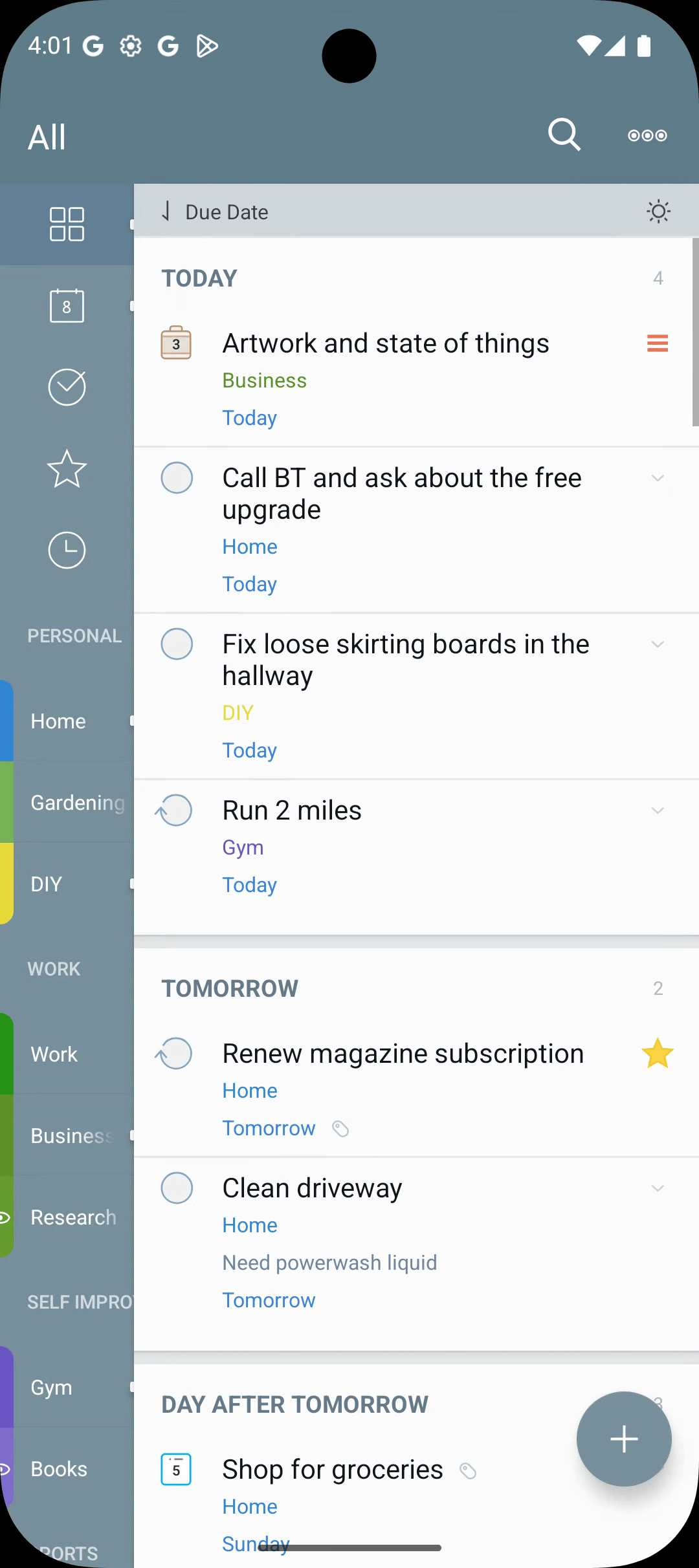
Navigation Drawer
The navigation drawer holds your Focus Lists, real lists, list groups, and Smart Lists.
- Open — slide from the left edge, or tap the hamburger icon (top-left).
- Close — tap outside the drawer, or swipe it back to the left.
The bottom of the drawer has a [+] button for creating new lists, projects, checklists, list groups, and Smart Lists.
Task List
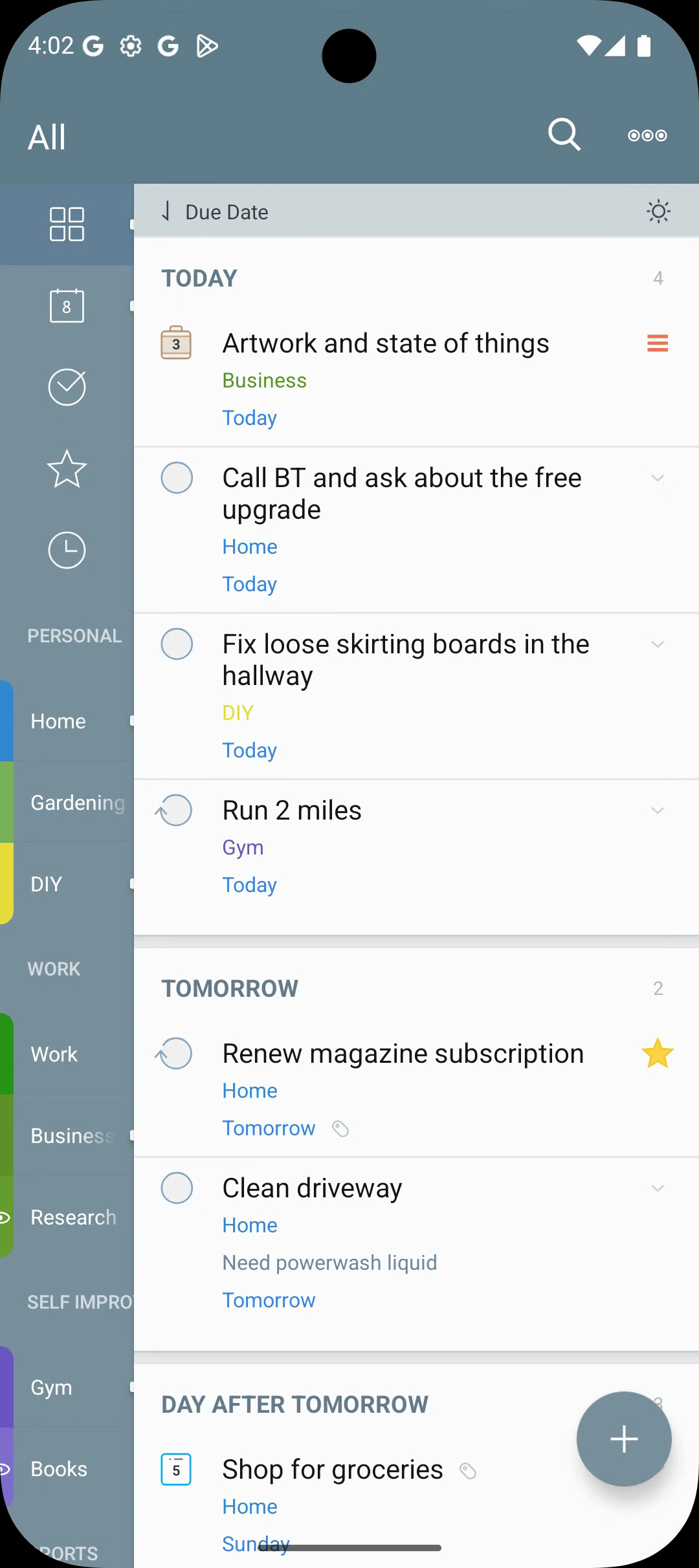
The main screen shows the tasks inside the selected list. Each row shows:
-
The checkbox (tap to mark complete).
-
Title and notes preview.
-
Tag badges, priority dot, due-date pill, location pin if relevant.
-
Action button at the right edge if the task has an Action. Sort options live in the top toolbar's overflow menu (
⋮): -
Start Date / Due Date / Priority / Tag / Manual.
-
Each list remembers its own sort.
Floating Action Button (FAB)
The blue FAB at the bottom-right is your capture surface:
- Tap — open the editor for a new task in the current list.
- Long-press — open Quick Add for fast capture into the Inbox.
Tabs and Side Panel
The side tab strip gives you quick access to:
- Tasks — the main view.
- Tags — all tags with counts; tap to filter.
- Nearby — map and list of location-tagged tasks, sorted by distance.
On phone-sized layouts, these areas slide over one another. On tablet layouts, Tags and Nearby can appear in the side panel so you can keep the task list visible while reviewing context.
Sliding Panels and Tablets
2Do adapts to the available width:
- Phones and narrow split-screen windows — the task list can fill the screen, then slide horizontally between panels. Swipe it slightly to the right to reveal the narrow list-tab strip; keep swiping right to expand the full Lists panel. Swipe it left to reveal the trailing side panel for Tags / Nearby.
- Tablets and wide windows — 2Do can show more panels at once. In landscape, the main layout has Lists, Tasks, and a tablet-only right panel that keeps the calendar surface available and can show the selected task editor. Tags and Nearby live in the trailing side panel; it stays hidden until you slide over to it.
- Changing window width — if a tablet window becomes narrow, 2Do switches back to the compact overlapping layout so the task list remains readable.
Swipe back toward the task list when you want to collapse a side panel and focus on tasks again.
Gestures
| Gesture | Action |
|---|---|
| Tap task | Open editor |
| Long-press task | Show task actions such as Done, Star, Defer, Tag, Move, and Delete |
| Swipe on task | Use the swipe actions for quick changes |
| Swipe horizontally on the main panels | Move between the Lists area, task list, and side panel where the current layout supports it |
| Drag handle in manual sort/edit mode | Reorder |
| Pull down | Reveal search bar |
Top Toolbar
The top of the Tasks screen has:
- List name (tap to expand for actions).
- Search icon.
- Focus Filter toggle.
- Overflow menu (
⋮) — list and view actions such as sorting, showing or hiding completed, paused, and scheduled tasks, and editing the list.