Getting Started with 2Do for iPhone and iPad
This tutorial walks you through setting up 2Do on iPhone and iPad and gives you a tour of every meaningful part of the app: capture, organization, scheduling, focus, search, sync, and the small touches that make daily use feel right. Each section is short; follow the link when you want the full reference.
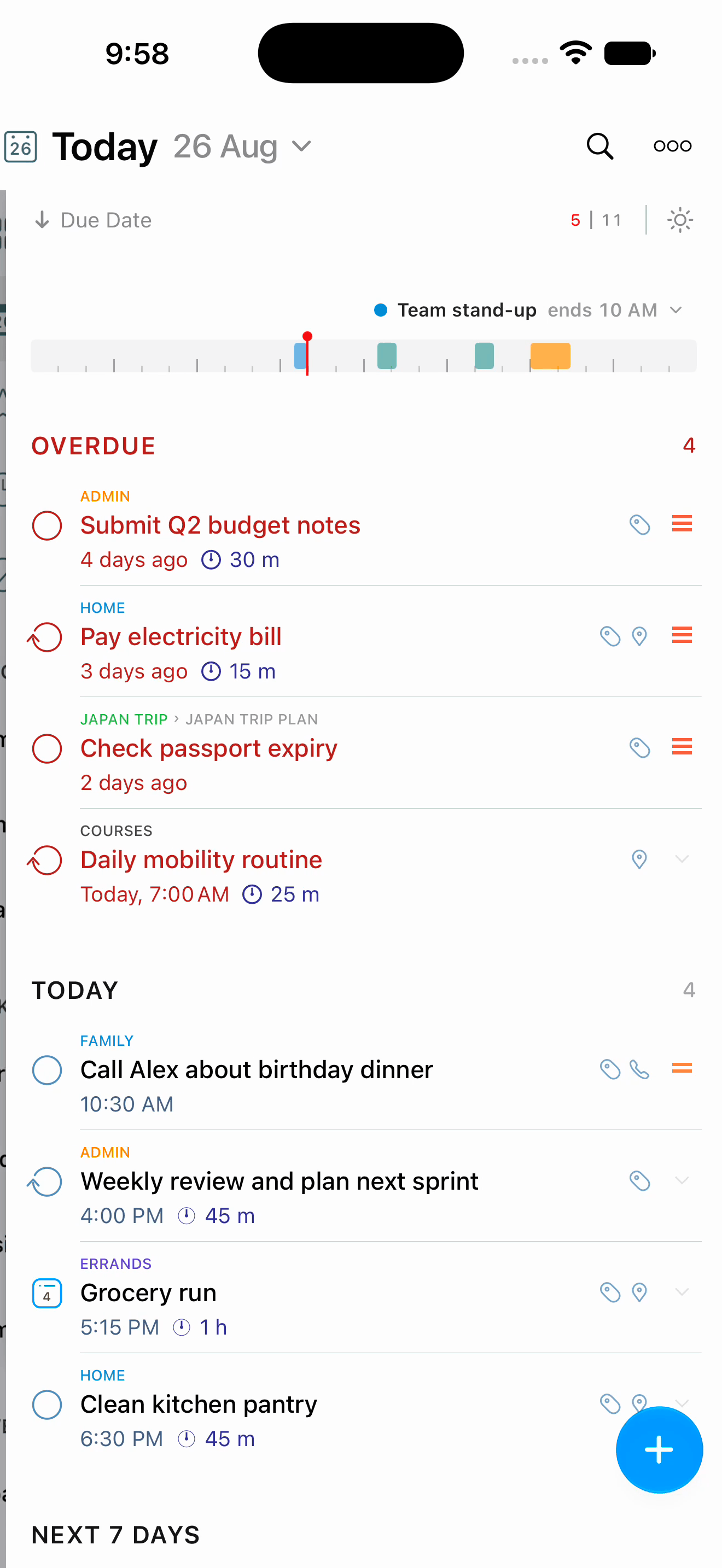
Introduction
2Do is a personal task manager that scales from a single list of errands to a full GTD-style planning system. iPhone and iPad are separate apps, sold separately on the App Store, and they carry the same features. What differs is the layout: the iPad has room to keep more on screen at once, and it adds a persistent editor pane, a hardware-keyboard menu bar, and multiple windows.
2Do's main features include:
- Lists, projects, checklists, and sub-tasks to combine simple tasks with structured outcomes.
- Quick Add, a floating capture card you reach by touching and holding the
+button. - Natural Language Input, which fills in the date, time, repeat, tags, and the rest from the words you type.
- Quick Open, a search card that jumps you to any task or list.
- Smart Lists and the search syntax behind them.
- Tags, tag groups, and pausing for context you can switch off in seconds.
- Markdown notes with a formatting toolbar, a preview, and link detection.
- Links between tasks written directly in your notes.
- Calendar events in your lists, so appointments and tasks sit together.
- Ring alerts as alarms on iOS 26.1 or later, which sound through Silent mode and Focus.
- Nearby alerts for tasks tied to a place.
- Sync with iCloud and several other services.
- Share lists over Wi-Fi with other 2Do users on your network.
- Mail to 2Do, a private address that turns email into tasks.
- Backups you can restore selectively, one list at a time.
First Launch and Permissions
The first time you open 2Do, a short Walkthrough Tutorial introduces the parts of the app. You can reopen it any time from Settings > Walkthrough Tutorial.
2Do does not ask for every permission up front. iOS prompts you when a feature first needs access:
- Notifications for task alerts and repeat reminders.
- Alarms if you turn on Ring alerts as alarms, so timed alerts ring like a Clock alarm.
- Location when you add a location to a task or turn on Nearby Alerts.
- Calendars when you show calendar events above your lists or open the Calendar Events panel. 2Do needs full calendar access to read and show events.
- Contacts when you attach a call, message, mail, or address action to a task.
- Camera, Photos, and Microphone when you attach a picture or record a voice note.
- Local Network when you publish or subscribe to a list over Wi-Fi Sharing, and so your other devices on the same network pick up your changes sooner.
- Reminders if you choose Apple Reminders as your sync method.
If you deny a permission by mistake, open the iOS Settings app, find 2Do, and turn the access back on.
Choosing Your Sync Method
Set up the same sync method and account version 3 uses, then choose Replace Local Data when 2Do asks. The full guide is Moving from version 3 to version 4.
Sync lives in one place. Open Settings > Sync > Setup, open Account Type, and pick a service:
- iCloud is the recommended choice. Everything syncs through the iCloud account you are already signed in to on the device, with no separate account or password. It carries Smart Lists, tags, tag groups, list groups, locations, and attachments. See Sync with iCloud.
- Reminders puts your tasks in Apple's Reminders app while 2Do keeps your projects and sub-tasks intact. Reminders itself does not support syncing sub-tasks and several other properties.
- Dropbox carries every task property, plus attachments.
- Todoist syncs tasks, projects, sub-tasks, tags (as labels), due dates, durations, and starred status.
- Toodledo for the Toodledo ecosystem.
- iCloud CalDAV, Fastmail, Yahoo, Fruux, and Custom CalDAV for calendar-server sync. Fastmail and iCloud CalDAV need an app-specific password.
- None if 2Do lives on a single device.
Each service's What syncs across your devices panel spells out exactly what travels and what stays on the device. Tap Set Up Sync when you are ready; afterwards, Enable Sync is the master switch, and turning it off keeps the account and its settings but stops syncing.
Use the same sync method, and account, on every device. If you have multiple Dropbox accounts for instance, please ensure you connect to the same one on each device
When both the device and the sync account already hold user data, 2Do asks how to reconcile the two sides: Replace Local Data, Replace Server Data, or Merge. Choose carefully, and see Sync for what each one does. Merge is the slow option, meant for when both sides hold data you need to keep.
The iPhone Layout
The iPhone app is built from three panels:
- Lists on the left: your Focus Lists, real lists, list groups, and Smart Lists, with three action rows at the bottom for adding a list, opening the mini calendar, and opening Settings.
- Tasks in the middle: the tasks inside the selected list, with the sort bar above them and the floating
+button at the bottom. - Utility panel on the right: Tags, Nearby, and Calendar Events, chosen with the segmented control at the top of the panel.
The panels slide. Swipe the task list toward the right to reveal the lists panel, and toward the left to reveal the utility panel. Swipe back toward the middle to return to the task list on its own.
The task editor is presented over the task list rather than living in a panel of its own, so tapping a task fills the screen with its details and closing it puts you back exactly where you were.
The mini calendar is a drawer. Tap the calendar row at the bottom of the lists panel to slide it in, and tap it again to put it away. It appears when the window is tall enough to hold it.
Most iPhone windows use the sliding layout, with one bar spanning the lists and task panels together. If iOS gives 2Do a regular-width window with enough room for all three panels, they sit side by side with a bar over each one.
The iPad Layout
The iPad app is built from four panels:
- Lists on the left, with a chip footer holding Add (which offers New List and New List Group), Tags, and Settings.
- Tasks in the middle.
- The editor pane, which shows the selected task's editor. With no task selected it shows RECENT, a short history of the tasks you last opened. The pane also holds the mini calendar and a set of statistics tiles.
- Utility panel with Tags, Nearby, and Calendar Events.
When the window is wide enough, 2Do shows the lists panel, the task list, and the widest trailing panel side by side. Below that width the panels slide instead: swipe the task list toward the lists side to reveal Lists, and toward the trailing side to move through the editor and the utility panel. The lists panel's Tags chip opens the utility panel directly.
Content Width under Settings > Appearance > Display adds padding around your tasks for easier reading. It has three steps, and a narrow window caps how far you can go. At the widest step, a list with two or more sections also shows a fast-scroll rail along the edge that you can tap or scrub to jump between sections.
Connect a hardware keyboard and the whole command set becomes available. Hold ⌘ to see the shortcuts for what you are doing right now, and on iPadOS 26 the same commands appear in the menu bar at the top of the screen. ⌃⌥⌘N opens a second window with its own list selection, search, and panel state.
See iPad Features and Multiple Windows.
The Main Task List
Above your tasks sits the sort bar. It carries the current list's name and color, today's date, animated counts of overdue and remaining tasks, chips for showing scheduled and paused tasks, the sort menu, and the Focus button. The bar at the very top of the task panel carries the list name, a Search button, and a Batch Editing button.
For the full anatomy, including the status indicators and what each control does, see The Main Task List.
Lists and List Groups
There are three kinds of entry in the lists panel:
- Focus Lists: All, Today, Starred, Scheduled, and Done. These are built-in perspectives across every list, not containers.
- Lists of your own, holding tasks, projects, and checklists. Each has a name, a color, a group, a sort order, and its own Focus settings.
- Smart Lists, saved searches that behave like real lists.
Inbox appears above the Focus Lists once Getting Things Done® Inbox is turned on under Settings > Tasks. It is a real list where new captures land for triage.
Creating a List
On iPad, tap the Add chip at the bottom of the lists panel and choose New List or New List Group. On iPhone, tap the Add row at the bottom of the lists panel. Give the list a name, pick a color, and choose a group.
Touch and hold any list for its quick actions: Edit, Change Statuses, Manage Lists, Manage Groups, Publish to LAN, Archive, and Delete.
Focus Lists
- All shows every task except those hidden by a paused tag, held back by a future start date, or living in a list excluded from All.
- Today shows tasks due today, plus whatever else your Today & Lists settings pull in: overdue tasks, starred tasks, and tasks you are still working on.
- Starred collects every starred task.
- Scheduled shows tasks with a future start date that are currently hidden.
- Done shows what you have completed.
With a hardware keyboard, ⌘1 to ⌘5 jump between them, and ⌘0 opens the Inbox. See Focus Lists.
Capturing Tasks
The Add Button and Quick Add
The floating + button below the task list does two things:
- Tap it to open the editor for a new task in the current list.
- Touch and hold it to open Quick Add, a small card that floats above the keyboard for fast capture. Type a title and press Return; the task is filed and the card stays open, ready for the next one. Press Return on an empty card to close it.
Quick Add carries a priority menu beside the title and capsules for the destination list, dates, and tags, so a task can arrive already filed. See Quick Add.
Quick Open
Tap the list name at the top of the task list (or press ⇧⌘O) and a search card drops in. Leave it empty and it lists your recently modified tasks and recently accessed lists; type a few letters and it matches tasks and lists by name. Press Return to open the highlighted result. See Quick Open.
Mail to 2Do
Turn on Settings > Mail to 2Do and 2Do gives you a private email address. Anything sent to it becomes a task: the subject becomes the title and the message text becomes the notes. Numbered lines arrive as a checklist, and subject instructions such as due(tomorrow), list(Work), and priority(!!!) file the task as it arrives. See Mail to 2Do.
The Share Sheet
Share text, a link, a web page, a photo, or a video from any app to 2Do and the share sheet opens a small capture screen where you can set the list, start and due dates, tags, and notes before saving.
Siri and Shortcuts
2Do ships native actions for the Shortcuts app, so you can create, find, complete, move, and open tasks from any shortcut, or run them by name with Siri. See Automate with Shortcuts and Siri and Shortcuts.
Tasks, Projects, and Checklists
2Do has three task types that work together:
- Task: a single item. It can carry notes, tags, dates, alerts, a location, an action, attachments, and sub-tasks.
- Project: a parent for related tasks. Each child carries its own dates, alerts, and tags, and appears on its own in your Focus Lists.
- Checklist: a parent for items that only matter together. Children cannot carry their own dates, though they can carry tags, and the whole checklist behaves as one item in Focus Lists.
Choose the type while composing a new task, or convert an existing one at any time by touching and holding it and choosing Convert. See Projects and Checklists.
The Task Editor
Tap a task to open its editor. On iPhone the editor is presented over the list; on iPad it fills the editor pane beside it. The header carries the checkmark, the priority control, previous and next arrows that follow the list order, and a More menu. Below the title, each property row slides open its own panel:
- Start date, due date, and duration
- Alerts, including the per-task Ring as Alarm switch
- Repeat
- Tags
- Locations
- Action: call, message, mail, visit, or a web search
- Attachments: photos and voice notes
See The Task Editor.
Natural Language Input
Type a new task the way you would say it. 2Do marks the details it recognizes with a soft capsule and fills in their fields as you type. A tag you type appears after you add a space, leave the title, or save. The detected text is taken out of the title when you save, along with helper words such as starting that lead into it.

Pack the school bag tomorrow at 7pm #family
=> due tomorrow 7:00 PM, tag family

Renew the passport on 5 September !!!
=> due 5 September, High priority

Tidy the desk every weekday at 5pm
=> due the next weekday at 5:00 PM, repeats Monday to Friday

Home repairs from 19 July until 21 July
=> starts 19 July, due 21 July

Post the letters /errands
=> saved to the Errands list
A date on its own is the due date. A start word such as starting, starts, begins, or from in front of a date sets the start date instead, and it can lead a range so the task gets a start and a due date in one line.
Dates, times, start dates, ranges, repeats, alerts, durations, priority, stars, tags, lists, and locations you have already saved can all be typed this way, in any of ten languages. Each language has its own supported words and word order, so not every everyday phrase is recognized. It works in the task editor for a new task and in Quick Add, and you can turn it on or off for either under Settings > Tasks > Natural Language Input.
Notes, Markdown, and Task Links
Task notes are styled Markdown as you type, with a toolbar for bold, italic, strikethrough, highlight, and bulleted or numbered lists. A Markdown Preview flips the notes into a rendered view, Insert Date & Time stamps the current date at the cursor, and 2Do collects every link it finds so you can open them from one menu.
Notes can also point at other tasks. Type @{ and a picker opens at the cursor; choose a task and 2Do inserts a link that resolves by title on every device your notes reach. See Notes and Markdown and Task Links.
Dates and Durations
A task has up to three time-shaped properties, each optional: Start Date, Due Date, and Duration. Together they decide when a task is visible, when it is held back as scheduled, and how far ahead 2Do surfaces it.
- Due date only: the task appears in Today on the day, then stays overdue until you complete it.
- Start date only: the task stays hidden until the start date arrives.
- Start and due: hidden before the start, visible through the working window, in Today on the due date.
- Due, due time, and duration: the duration creates an effective start time before the deadline, so a task due at 3:00 PM with a 30-minute duration becomes active around 2:30 PM.
Tasks with a future start date are hidden until then. Reveal them from the Scheduled Focus List or the clock chip on the sort bar. See Dates and Durations.
Stars and Priorities
Two ways to mark a task as more important, with deliberately different jobs. A star says I want this in front of me right now; it is quick to flip on and off, and the Starred Focus List collects every starred task. A priority (None, Low, Medium, High) says this task is intrinsically important; it drives sort order and is a first-class field in search. On iOS 26 and iPadOS 26 with Apple Intelligence turned on, Auto-Prioritize can work out priorities for a whole selection of tasks for you. See Stars and Priorities.
Tags and Tag Groups
Tags attach context to a task without depending on which list it lives in: GTD contexts such as @home or @waiting, people, energy levels, status flags. Open the Tags page of the utility panel to see them all with their counts, tap one to filter the task list, and tap more to combine them. Related tags can be gathered into tag groups.
See Tags.
Pausing a Tag
Any tag can be paused. While a tag is paused, every task carrying it disappears from view: All, Today, your lists, and search. Swipe a tag in the Tags panel to pause it, and swipe again to resume. The paused chip on the sort bar reveals paused tasks without resuming the tag. See Tags.
Locations and Nearby Alerts
Attach a location to a task and 2Do becomes context-aware. The Nearby page of the utility panel lists tasks with locations sorted by distance, and Settings > Nearby turns on Nearby Alerts, which alert you about nearby tasks while taking their start and due dates into account. You can also set a maximum distance. Distances use the units for your region. See Nearby and Locations.
Calendar Events in Your Lists
2Do can show your Apple Calendar day right above your tasks. Under Settings > Calendar Events, grant calendar access and turn on Show Calendar Events in Lists to keep the day bar across your regular lists, or Show Calendar Events in Today to keep it to Today only. Uncheck any calendars you would rather leave out; new calendars are included automatically.
Tap a date in the bar to see that day's events, tap an event for its details, and expand the bar for a fuller day view. The bar stays out of Smart Lists, project views, and search. The Calendar Events page of the utility panel lists the same events in a scrollable panel. See Calendar Events.
The Mini Calendar
The mini calendar filters your task list by date. Tap a day to show only that day's tasks, drag across days for a range, and tap inside the current selection to clear it. Days with tasks starting or due are marked with a heat tint or dots, set under Settings > Appearance > Busy Days. Drag a task onto a date to set its due date.
On iPhone the calendar is a drawer you open from the lists panel; on iPad it is a permanent part of the editor pane. See The Mini Calendar.
Search and Smart Lists
Tap Search in the bar above your tasks to filter the current view. Beyond plain text, 2Do understands a structured syntax: type:, tags:, taggroups:, locations:, lists:, groups:, and modified: / created: / completed:. Filters combine with AND by default; put OR between two of them for alternatives:
type: hiprio AND duethisweek tags: !waiting
type: overdue OR tags: urgent
The Search Presets sheet builds type: expressions for you, with Match ALL filters and Match ANY filter modes and a ! control for exclusions. A Search Scope button switches between All Lists and Current List Only, and Sounds-Like Search finds close spellings.
Save the current query as a Smart List and it becomes a permanent entry in the lists panel. See Search and Smart Lists.
The Focus Filter
The Focus button on the sort bar switches a list between everything it holds and only the tasks matching the conditions you pick: Overdue, No Due Date, In Progress, Today, Tomorrow, This Week, Next 3 Days, Next 7 Days, Next 30 Days, Next 6 Months, Next 12 Months, High Priority, and Starred. Touch and hold the button to change those conditions, or set them per list under Settings > Tasks > Focus Mode. Each list remembers its own choices. See Focus Filter.
Repeating Tasks
Any task can repeat: daily, weekly, every two weeks, monthly, quarterly, yearly, or on a custom rule such as specific weekdays or the second Tuesday of each month. The choice that matters most is whether the task repeats from its due date (fixed schedules such as rent on the 1st) or from completion (chores that restart when you finally do them). See Repeating Tasks.
Alerts and Alarms
A task can carry one alert or many, relative to its dates or fixed to a specific date and time, with an optional sound. Settings > Alerts & Badge holds the rest:
- Default Reminders add an alert to dated tasks for you.
- Nagging repeats an alert until you deal with it, and sets the snooze interval.
- Ring alerts as alarms (iOS 26.1 and later) makes timed alerts ring like a Clock alarm: full screen, through Silent mode and Focus, and until you dismiss them. You can set this differently for any single task from its Alerts panel.
- Exclusions > List Alerts turns off alerts for any list you would rather not hear from.
See Alerts and Nagging.
Batch Editing
When several tasks need the same treatment, tap Batch Editing in the bar above your tasks. Every checkbox becomes selectable, and a drawer appears at the bottom with seven commands: Dates, Tag, Priority, Location, Share, Move, and Delete.
You can also touch and hold a task's checkmark and drag down the column to select a run of tasks in one gesture. With Apple Intelligence turned on, Priority also offers Auto-Prioritize, which suggests a priority for every task you selected. See Batch Editing.
Undo and Redo
Common task and list changes can be undone and redone, including completing, editing, moving, tagging, deleting, and batch edits. Swipe left with three fingers to undo and right with three fingers to redo, or shake the device when Shake to Undo is on in iOS Settings. See Undo and Redo.
Drag and Drop
Touch and hold a task and drag it to move it somewhere useful: onto a list in the lists panel to move it there, onto Today to make it due today, onto Starred to star it, onto Done to complete it, onto Scheduled to pick a start date, onto a tag in the Tags panel to apply that tag, or onto a date in the mini calendar to set its due date. In the other direction, drag a tag or a location from its panel onto a task row to apply it. See Drag and Drop.
Pinch and Touch and Hold
Pinch to Change Detail
Pinch the task list inward for less detail and outward for more. The three display modes are Compressed (titles and dates), Normal (titles, notes, and dates), and Extended (multi-line titles, tags, notes, and dates). The same modes are available under Settings > Appearance > Display > Display Mode.
Touch and Hold a Task
Touch and hold any task for its full menu: Details, its action, Delete, quick due-date and start-date rows, Mark, Priority, Note, Alarm, Tag, Attachment, Copy, Convert, Move, and Share. See Pinch and Touch and Hold.
Collapsible Sections
When the task list is grouped into sections, tap a section header to collapse or expand it. Each list remembers which of its sections are closed. If the header you tap is pinned at the top while you scroll, the first tap scrolls back to the header's own place in the list instead.
Share Lists over Wi-Fi
Sometimes you do not need a cloud account, just a way to share one list with someone on the same network. Touch and hold a list and choose Publish to LAN, give it a shared name, choose Read & Write or Read-only, and keep the six-digit passcode on. Other 2Do users open Settings > Wi-Fi Sharing > Browse Shared Lists and subscribe.
Wi-Fi sharing works between 2Do apps on the same local network and needs no account. The passcode controls who may subscribe; it is not transport encryption, so treat a published list as reachable by anyone on that network who has the code. The publishing device has to stay awake and on the network.
Backups and Restore
2Do backs up your local database on a schedule you choose under Settings > Backups & Export: every 24 or 48 hours, keeping as many as 30. From the same screen you can Create Backup Now, Restore from File…, Backup to Email, or Export Lists….
Opening a backup shows a browser of the lists inside it. Restore Selected is non-destructive and duplicates the lists you pick into a Restored group. Restore Everything… replaces your current database and quits 2Do so it can reopen on the restored data. See Backups.
Password Protection
Settings > Security protects 2Do and selected lists with a four-digit passcode, with Face ID or Touch ID for unlocking. The same pane hides lists from the panel entirely, and holds your archived lists. See Password Protection.
Printing
2Do prints a formatted copy of your tasks. With a hardware keyboard, ⌘P prints the list on screen; touch and hold a single task and choose Print...; or select tasks in batch editing and choose Print... from Share. The options screen offers Include Sub-tasks, Include Notes, Include Tags, and a Font Size, then hands the page to AirPrint. See Printing.
Widgets
2Do's widgets keep your tasks in view without opening the app: a list widget you point at any list, a Today widget, and a set that shows what is current and what is up next, in home-screen and lock-screen sizes. Add them the standard iOS way by touching and holding the home screen. See Widgets.
Control Center
2Do adds two Control Center controls. New Task opens 2Do ready to add a task, and Today opens your Today list. Add them from the iOS Control Center editor.
Siri and Shortcuts
The Shortcuts app can drive 2Do directly: create a task with dates, tags, alerts, recurrence, and sub-tasks; find tasks by property; complete, move, duplicate, or delete them; pause a tag; and open a task or a list. Run them from any trigger Shortcuts can fire, or by name with Siri. See Automate with Shortcuts.
Apple Watch
2Do on Apple Watch shows what is next, then your Today, Overdue, and Tomorrow tasks, and lets you complete, defer, delete, or add a task from your wrist. Complications put the same information on your watch face. See Apple Watch.
URL Schemes
The twodo:// x-callback-url scheme can create tasks, open lists, run searches, and return task identifiers to other automation tools. See URL Schemes.
Keyboard Shortcuts
Connect a Magic Keyboard, a Smart Keyboard, or any Bluetooth keyboard and you can work through your tasks without touching the screen. A few that pay for themselves quickly:
| Shortcut | Action |
|---|---|
⌘N | New Task |
⇧⌘2 | Quick Add |
⇧⌘O | Quick Open |
⌘F | Search |
⌘0-⌘5 | Jump to the Inbox or a Focus List |
T / Y | Due Today / Due Tomorrow |
D / K | Defer / Schedule |
S | Toggle Starred |
⌘/ | Mark as Completed |
⌃⌥⌘N | New Window (iPad) |
See Keyboard Shortcuts for the full reference.
Settings
Settings is organized into panes: General, Appearance, Tasks, Today & Lists, Calendar Events, Alerts & Badge, Nearby, Sync, Mail to 2Do, Wi-Fi Sharing, Security, Backups & Export, and Diagnostics. The main screen also holds the help links (Walkthrough Tutorial, User Manual, and Leave a Review) with 2Do's version at the bottom. Open it from the lists panel: the Settings chip on iPad, the Settings row on iPhone. See Settings.