Quick Add
The floating + button below the task list does two things. Tap it for a normal new task in the full editor. Touch and hold it for Quick Add, a small card that floats above the keyboard for the moments when ideas arrive faster than you can file them.
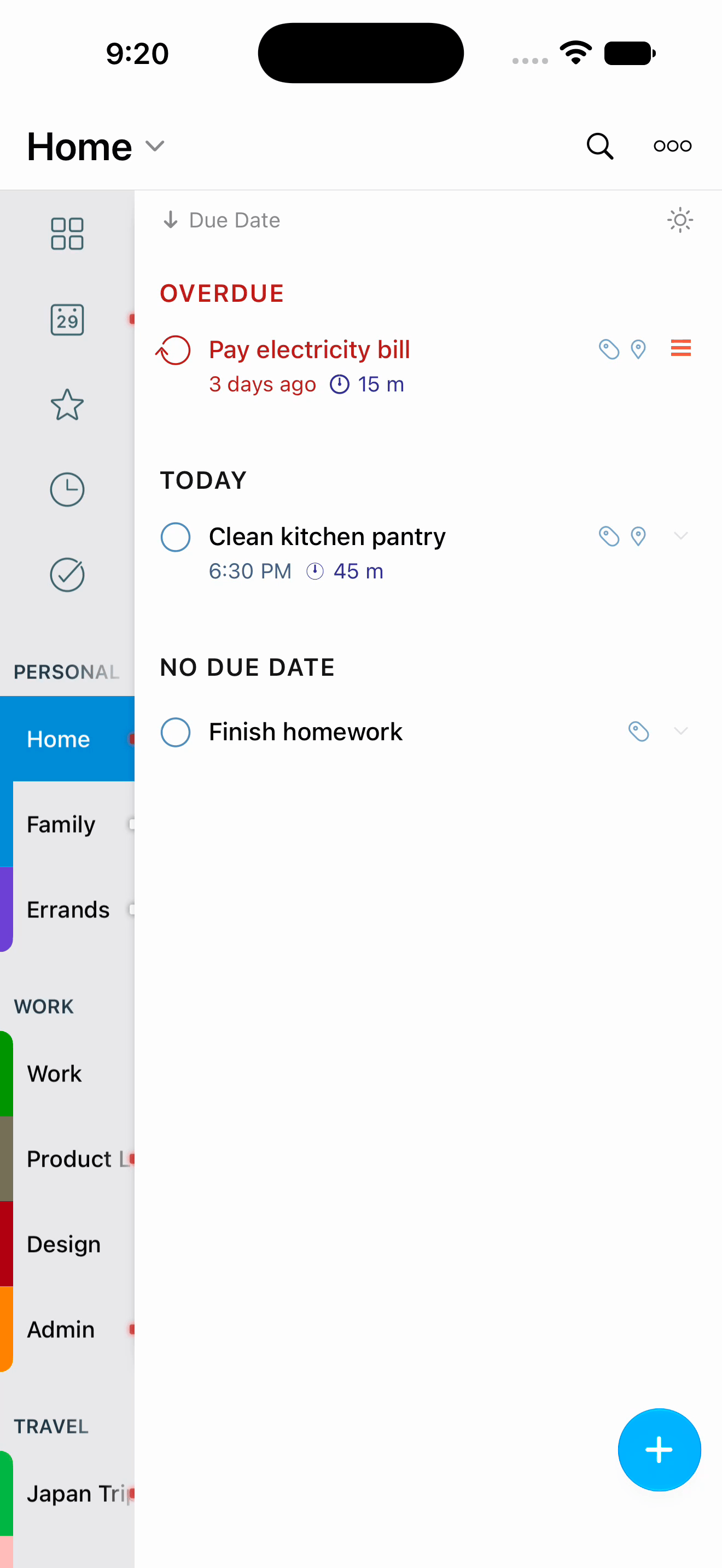
Opening Quick Add
- Touch and hold the
+button below the task list. The gesture takes about a quarter of a second. - With a hardware keyboard, press
⇧⌘2. - While adding a task in the full editor, tap the lightning control at the top of the editor. It files what you have and opens a fresh card for the next one.
An empty list spells this out: Tap on + to add a new task, or tap and hold for Quick Add.
The Card
The card has two rows.
The title row holds the field, whose prompt reads Quick add…, a clear control that appears once you start typing, and a priority menu. The menu offers None, Low, Medium, and High, plus a Starred switch. While you are composing, it also carries Convert..., which turns the draft into a Task, a Project, or a Checklist.
The capsule row below it holds three capsules. Tapping one raises its picker behind the card, one at a time:
- List: the destination. Search your lists, projects, and checklists, or tap Create New List... to make one on the spot.
- Dates: the full Start, Due, and Duration panel, the same one the task editor uses. See Dates and Durations.
- Tags: pick as many tags as you want, or tap Create New Tag... to add one. See Tags.
Each capsule shows what it currently holds, so a glance tells you where the task is going and when it is due.
Typing the details into the title works too: Natural Language Input picks up due dates, times, start dates, repeats, alerts, durations, priority, tags, lists, and saved locations as you write, and the capsules follow along. Collect the parcel tomorrow at 3pm #errands and Paint the garden shed starting Saturday both arrive with their fields filled in. Detection is on out of the box; turn it off for Quick Add with the Quick Add switch under Settings > Tasks > Natural Language Input.
Filing One Task After Another
Press Return and the task is filed. The card stays open and focused with an empty field, ready for the next one, so a run of thoughts becomes a run of tasks without a single trip back to the list. Press Return on an empty card to close it.
This is the loop the card is built for: type, Return, type, Return, Return.
For a brain dump during a meeting or a commute, open Quick Add once and keep pressing Return. Set the list capsule first and every task in the run lands in the same place.
Where Tasks Land
Quick Add files into the list you are currently viewing unless you tell it otherwise. Two settings under Settings > Tasks > New Tasks change that:
- Default list picks the list new tasks go to.
- Always Use in Quick Add makes Quick Add use that default list regardless of which list is on screen.
Turning on Getting Things Done® Inbox in the same section gives you an Inbox to capture into and triage later.
Whatever the default, the List capsule always lets you send this one task somewhere else before you file it.
Triage your Inbox daily. Anything sitting in it is something you have not decided about yet, so keeping it short is the whole point.
Capturing from Outside the App
Quick Add is not the only way in:
- The share sheet: share text, a link, a web page, a photo, or a video from any app to 2Do, and a small capture screen opens where you can set the list, start and due dates, tags, and notes before saving.
- Mail to 2Do: send email to your private 2Do address and it arrives as a task.
- Shortcuts and Siri: create, find, and complete tasks from any shortcut, or by voice.
- Control Center: the New Task control opens 2Do ready to add a task.
- Widgets: several widget sizes carry an add button.