Lists and List Groups
Lists are the basic organizational unit in 2Do. They live in the navigation drawer (slide from the left edge, or tap the hamburger icon).
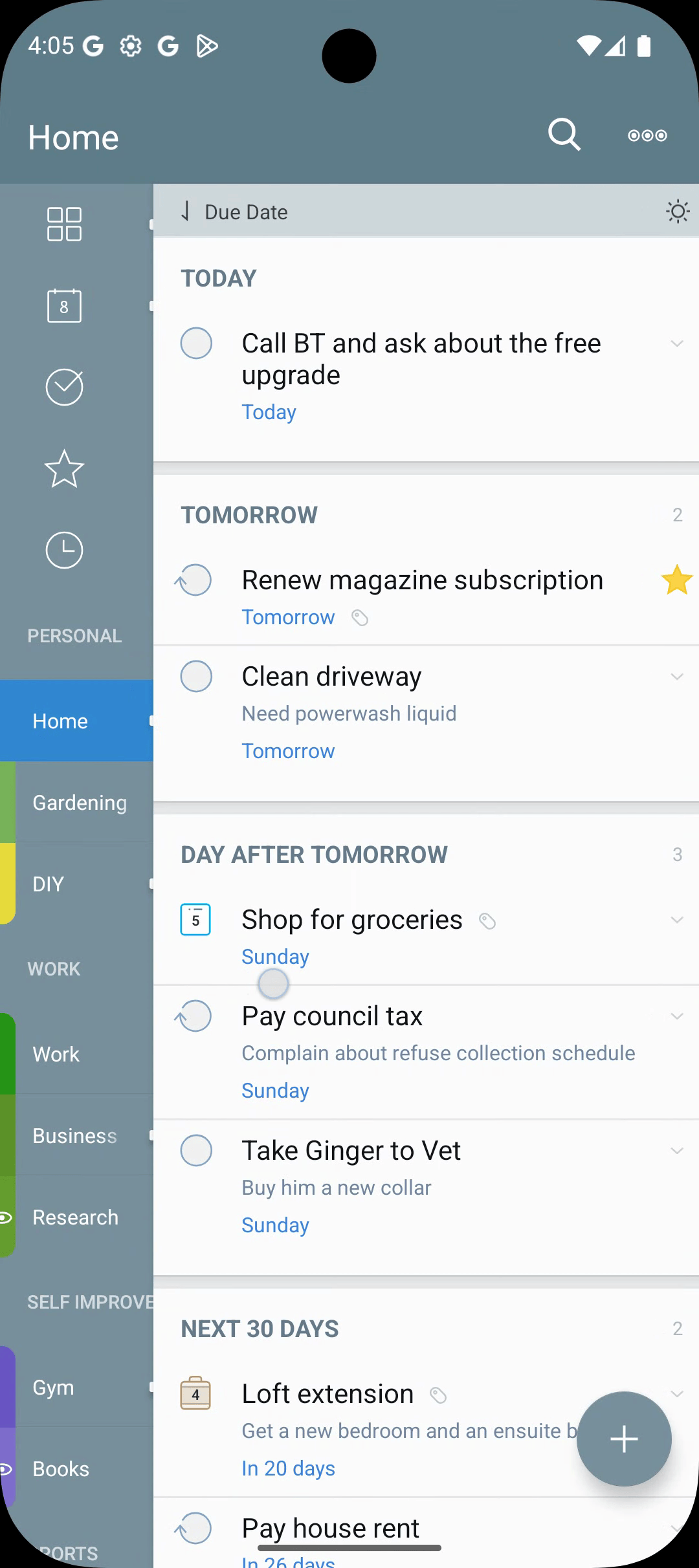
Focus Lists
The top of the drawer always shows your Focus Lists:
- All — everything not hidden by a paused tag or scheduled in the future.
- Today — tasks due today, plus tasks whose duration window reaches today. Depending on your Appearance settings, Today can also include overdue tasks, starred tasks, and tasks you're still working on.
- Starred — your starred tasks.
- Scheduled — tasks with a future start date.
- Inbox — tasks not yet sorted into a list.
Excluding a List from Focus Lists
Long-press a list in the drawer → Edit List. Use the Exclude from toggles to keep this list out of:
- All
- Today
- Done
- Sync
A small eye-shaped icon appears next to the list name once you've customised its global visibility. The list and its tasks are still visible when you tap into the list directly — they just don't show up in the Focus Lists you've excluded them from.
Creating a List
- Open the drawer → tap
[+]at the bottom. - Choose New List, New Project, New Checklist, New List Group, or New Smart List.
Each list has a name, a color, a list group, and visibility options for Focus Lists and sync.
List Groups
Group related lists into a folder for a calmer drawer:
[+]→ New List Group.- Drag lists into the group from the drawer's edit mode.
- Tap a group's chevron to collapse or expand.
Reordering
- Open the drawer → tap Edit at the top → drag the handle next to each list.
Editing or Deleting
Long-press any list → Edit List or Delete List. From Edit List you can:
- Rename the list.
- Move it to another List Group.
- Change the color.
- Exclude it from All, Today, Done, or Sync.
- Archive the list.
Indicators
- Count badge — incomplete tasks.
- White glowing dot — a task due today is hiding inside.
- Red glowing dot — an overdue task is hiding inside.
- A lock icon indicates a locked list.
- A smart-list glyph distinguishes Smart Lists from regular lists.
- Eye-shaped icon — one or more of the list's visibility options have been changed.
Smart Lists
Smart Lists also live in the drawer. They're saved searches with their own color and icon. See Smart Lists.