Dates and Durations — Start, Due, and Duration
A task in 2Do can carry up to three time-shaped properties: a Start Date, a Due Date, and a Duration. Each one is optional. Used together, they decide when a task is visible in your Today list, when it is hidden as Scheduled, and how far in advance 2Do should start nudging you about it.
Think of them this way:
- Start Date means “do not show this until it is time to begin.”
- Due Date means “this is the deadline.”
- Due Time makes the deadline precise.
- Duration means “this task needs this much working time before the deadline.”
Choosing Between Start and Due
Most tasks need only one of the two. Pick by asking what you want the date to do:
- Use a Start Date when you want the task to stay hidden until the day or time you plan to begin it.
- Use a Due Date when the task genuinely becomes late after that date or time.
- Use both only when there is a real working window between the two — a day you can begin, and a later day you must be finished by.
Only a due date can make a task overdue. A start date decides when a task appears; it never decides whether the task is late. When a task has no real deadline, leave the Due Date off and let the start date bring it into view.
Use Start Date for anything that shouldn't bother you yet — appointments, scheduled work, recurring chores. Use Due Date for actual deadlines. Use Duration to surface a lead-up window for tasks that need preparation.
Daily Routines
For a recurring task you want to see at a set time of day but do not have to finish by then, set a Start Date with that time, repeat it daily, and leave the Due Date off:
- Update journal starting at 8:00 AM — hidden until 8:00 AM, then available for the rest of the day.
- Check bank account starting in the evening — out of the way until then.
The task never becomes overdue, and each occurrence gets the next start date. Add a Due Date and Due Time only when finishing by a particular time genuinely matters. See Repeating Tasks for the repeat options.
A Plain, Undated Task
A task with no dates stays in the list it was created in. It does not appear in Today. It is never overdue.
Just a Due Date
A task with a Due Date appears in Today on the due date — for the whole day — and then becomes overdue until you complete it. With a Due Time, the alarm window is anchored to the time.
Overdue tasks can continue to appear in Today with an overdue indicator, depending on your Today list settings. They stay overdue until checked off.
Use this for simple deadlines:
- Submit invoice due Friday — appears in Today on Friday.
- Join client call due Friday at 3:00 PM — appears in Today on Friday, with the deadline anchored to 3:00 PM.
Just a Start Date
A task with only a Start Date is scheduled to appear at that start date. Until then, it is hidden from the regular list and from Today.
To see scheduled tasks before their start arrives:
- Tap the Scheduled focus list at the top of the drawer.
- Or, on the sort bar, toggle the clock icon to display scheduled tasks alongside your normal view.
Showing or hiding scheduled tasks changes which tasks a view includes, which is why the same task can appear and disappear as you toggle the clock icon or switch to the Scheduled focus list. Sorting only changes the order of what is already there; it never adds or removes a task from a view.
Use this for work that should not distract you yet:
- Water plants starts Saturday morning — stays out of the way until Saturday.
- Pack for trip starts Thursday at 6:00 PM — appears when it is time to begin packing.
Each item uses its own Start Date for scheduled visibility. A project with no Start Date stays visible when Hide Scheduled is on, even if one or all of its child tasks start in the future. Those children stay hidden until their own start dates arrive or you show scheduled tasks.
Start Date + Due Date
- Hidden from the list until the start date arrives.
- Visible in its list between the start date and the due date.
- In Today on the due date, and from the start date onward when Always show Still Working On is enabled in Settings > Appearance.
- After the due date, overdue.
Use this when work has a real working window:
- Prepare quarterly review starts Monday and is due Friday — hidden before Monday, visible during the week, due Friday.
- Tax paperwork starts 1 April and is due 15 April — out of sight before April, then visible while you can work on it.
Just a Duration
Without dates, a duration is just an estimate of how long the task will take. It doesn't drive visibility — but combined with a due date it becomes one of 2Do's most useful tricks.
Use duration alone when you want a planning estimate but no schedule yet:
- Clean garage duration 2 hours — still lives in its list like a normal undated task.
- Write outline duration 30 minutes — useful for filtering or planning, but it does not appear in Today by itself.
Due Date + Due Time + Duration — Effective Start
When a task has a due date, a due time, and a duration, 2Do counts the duration backward from the deadline. That creates an effective start time without you having to set a separate Start Date.
Example: a meeting deadline is tomorrow at 3:00 PM and the task has a 30-minute duration. 2Do treats 2:30 PM as the point where the task starts needing your attention. The task still has a 3:00 PM deadline, but the duration gives it a useful “start working now” window.
Use this for time-boxed work:
- Join Zoom meeting due 3:00 PM, duration 30 minutes — start preparing at 2:30 PM.
- Submit proposal due 5:00 PM, duration 2 hours — begin treating it as active at 3:00 PM.
If you set a Due Date and Duration without a Due Time, 2Do treats it as a date-only lead-up window. For precise meetings and deadlines, set a Due Time too.
For appointments and meetings, combine Due Date + Due Time + Duration. It keeps the actual deadline clear while also telling 2Do when preparation should begin.
Due Date + Duration — Lead-Up Window
When a task has a due date and a duration, 2Do uses the duration as a lead-up window before the due date. This can surface the task before the due date when the duration reaches back into today or an earlier day.
Example: a task due Friday with a duration of 2 days can start surfacing before Friday because the work needs time before the deadline. This is useful for tasks like prepare slides, review contract, or pack for a trip where the due date is not the first moment you should think about it.
Start + Due + Duration
When all three are set, the Start Date normally keeps the task out of the way until work is meant to begin. If the duration window before the due date starts earlier than that, 2Do can surface the task when the duration window begins.
Use this when you want both a “do not show before this date” boundary and a realistic amount of working time:
- Prepare conference talk starts 1 June, is due 10 June at 5:00 PM, duration 4 hours — kept out of the way before June, then available while you plan, and treated as active as the deadline approaches.
- Renew passport starts Monday, due Friday, duration 1 hour — hidden before Monday, visible during the week, and due Friday.
Repeating Tasks and Dates
See Repeating Tasks for the full reference. Key points:
- The next occurrence carries the same date shape forward — start date and/or due date, advanced by the recurrence rule.
- Repeat from Due Date — next occurrence calculated from the previous due date. Best for fixed schedules.
- Repeat from Completion — next occurrence calculated from the date you completed the task. Best for chores.
- Durations carry forward intact.
Smart Scheduling
The behavior that hides scheduled tasks is controlled by Smart Scheduling. It's on by default. The clock toggle on the sort bar lets you peek at scheduled tasks without disabling Smart Scheduling globally.
Filtering by Date with the Mini Calendar
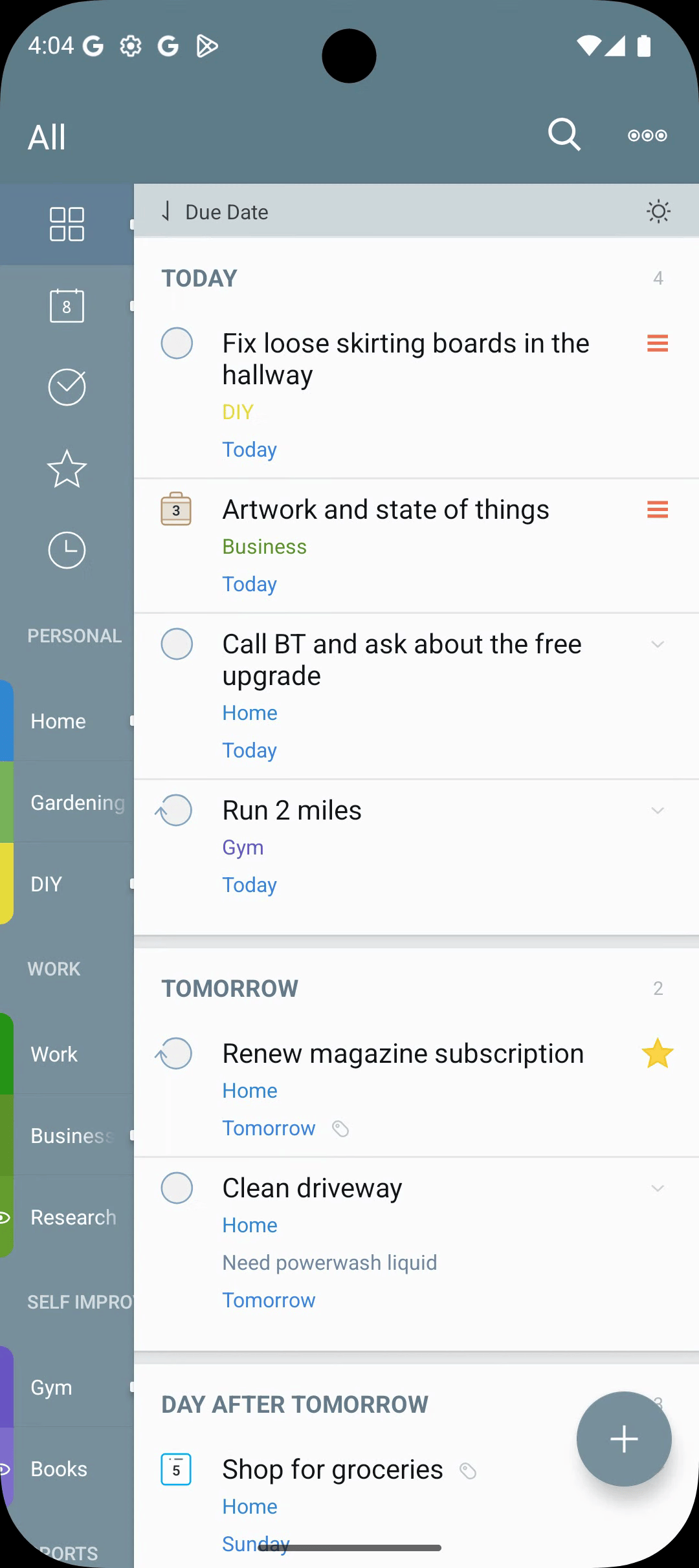
Pull down on the task list to reveal a mini calendar for date-based filtering. Tap a date to narrow the visible tasks to that day, or use it inside search to scope results by date.

Building a Daily View
For everyday work the built-in Today list is usually enough. It already combines tasks due today with overdue tasks and tasks you are still working on.
If you would rather build your own Smart List, the distinction that matters is which date the search token looks at:
type: todaymatches tasks whose start or due date is today.type: duetodaymatches tasks due today only.
See Smart Lists for the rest of the search syntax.
Practical Examples
| Task | Start | Due | Duration | What you'll see |
|---|---|---|---|---|
| Buy milk | — | — | — | Lives in its list. Never appears in Today. |
| Submit invoice | — | Fri | — | Appears in Today on Friday. Overdue Saturday onwards. |
| Take out the bins | — | Wed 8 PM | — | Appears in Today all of Wednesday. Alarm at 8 PM if set. |
| Take out the bins | Wed 8 PM | — | — | Hidden until Wednesday 8 PM, then appears in the list. |
| Prep quarterly review | Mon | Fri | — | Visible in its list from Monday; in Today on Friday, or from Monday with Always show Still Working On on. |
| Join meeting | — | Tomorrow 3 PM | 30 minutes | Deadline is 3 PM; duration creates a 2:30 PM effective start. |
| Submit proposal | — | Fri 5 PM | 2 hours | Deadline is 5 PM; duration creates a 3 PM effective start. |
| Prep quarterly review | — | Fri | 2 days | Starts surfacing before Friday when the lead-up window reaches the current day. |
| Prepare conference talk | Mon | Fri 5 PM | 4 hours | Hidden before Monday, visible during the week, and treated as active before the Friday deadline. |