Batch Editing — Move, Defer, Tag, and Complete Many Tasks at Once
When you've got more than a couple of tasks to handle the same way, batch editing turns a long sequence of taps into a single action.
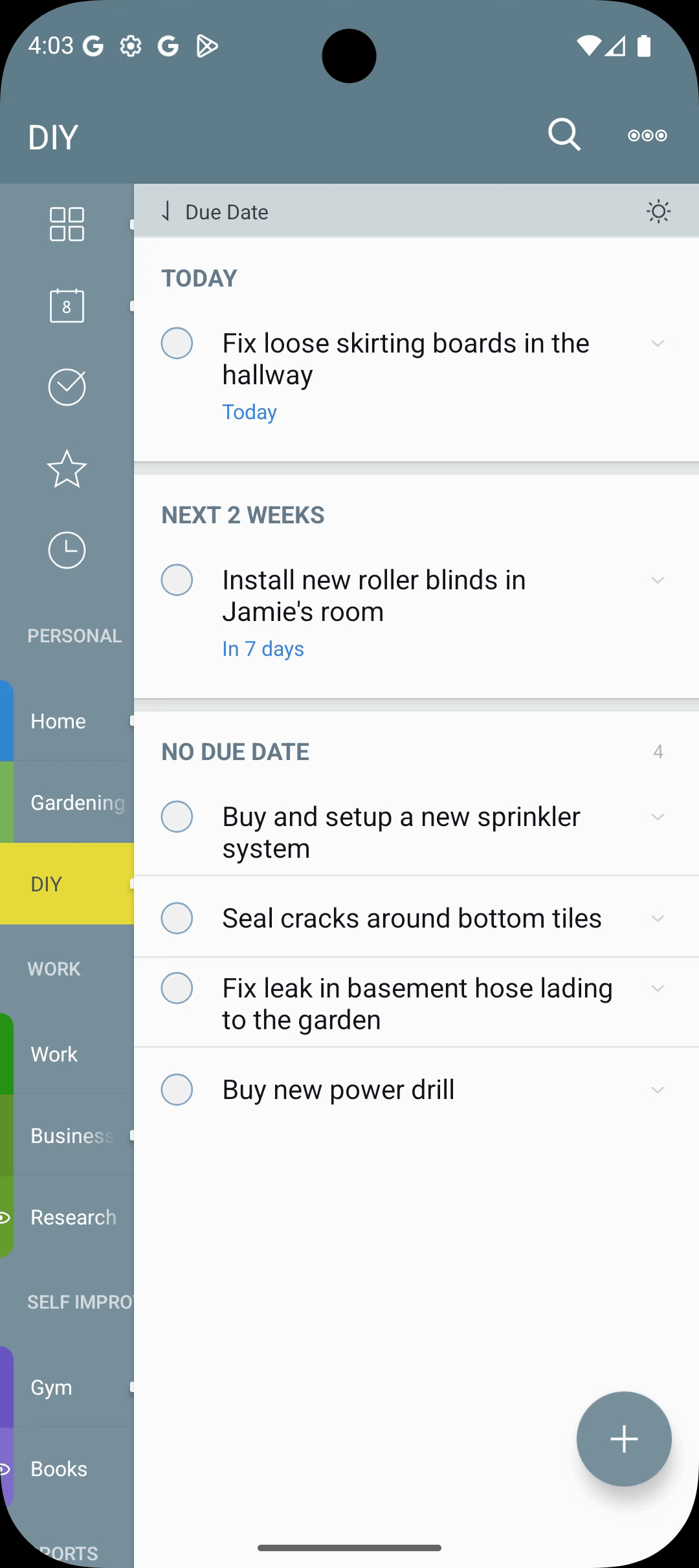
Entering Batch Edit Mode
On the Tasks screen, tap the icon at the top-right corner to enter batch-edit mode (the exact icon depends on your version — typically a multi-select / checkboxes glyph).
Tap any task to add it to the selection. The action toolbar at the bottom of the screen shows what you can do with the current selection.
Available Actions
With one or more tasks selected:
- Dates — change or defer dates for all selected tasks.
- Tag — add or remove tags across the selection.
- Priority — set priority or starred state for the selection.
- Location — add or replace locations on devices where the batch sheet shows this action.
- Share — bundle the selection into the Android share sheet.
- Move — move the selected tasks to a different list.
- Delete — remove the selection.
Use batch defer at the end of a busy day to push everything still hanging out to tomorrow in a single move.
Build a habit of batch-tagging during your weekly review. Select all tasks waiting on someone else's reply, batch-tag them @waiting, and pause that tag — they vanish from view until you actively choose to unpause.
Exiting Batch Mode
Tap the same icon again, or Done, to leave batch mode.