Nearby and Locations
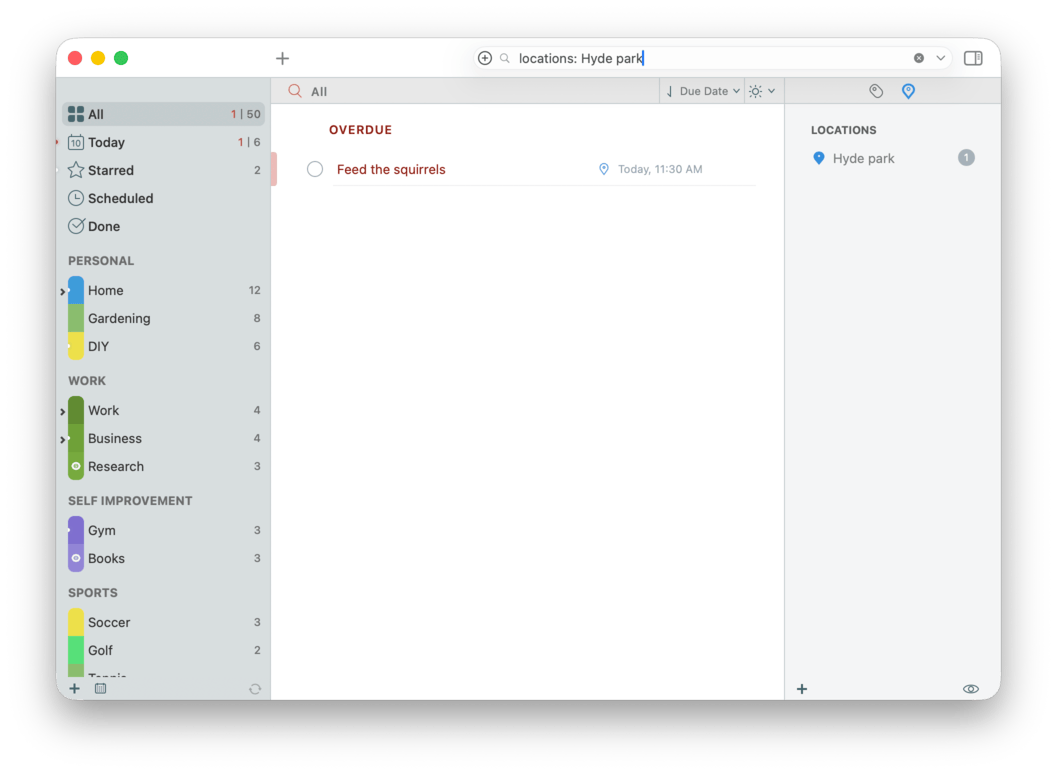
Tasks live in time and space. Attach a place to a task and 2Do becomes context-aware: it can plot the task on a map and show it in the Nearby panel. If you also use 2Do on iPhone or iPad, that synced location can be used for Nearby Alerts there.
Adding a Location
Open a task and click the Location field. You can enter a location three ways:
- Type an address: 123 Main St, Boston, and 2Do geocodes it via Apple Maps.
- Search by name: Trader Joe's, the dentist, Apple Park.
- Pin a point: open the embedded map preview and pin a custom point.
While typing a new task you can also reach a location you have already saved in 2Do: write
@and its name, as inCollect the prescription @ Pharmacy. Spaces and capitals do not matter, so@centrallibraryfinds Central Library, and the match appears as soon as the whole name is there. A part of a name, such as@central, sets nothing, and a name you have never saved stays in the title as plain text. Typing@never creates a new location. You can keep writing after it; the words that follow stay in the title. See Natural Language Input.
After picking a location, the task appears with a location indicator in the task list and can be found from the Nearby panel.
The Mac app manages task locations and helps you review nearby work. Nearby Alerts are configured and delivered on iPhone or iPad, where iOS Location Services can monitor places in the background.
For repeating errands (groceries every Saturday), use a Repeating Task with a location attached. The location persists across each new occurrence.
The Nearby Panel
The right utility panel has a Nearby tab. It shows:
- A map with pins for every task that has a location.
- A list, sorted by distance from your current location.
- A switch between Nearby and All Locations.
- A visibility toggle for locations currently used by the displayed tasks. Click a pin to see its tasks; double-click a task to open the editor.
The Nearby panel may need macOS Location Services to know where you are. If location access is disabled, enable it under System Settings > Privacy & Security > Location Services.
Smart Lists for Errands
A Errands Nearby Smart List works wonders. Build it with:
- all of:
- Has location
- Within 1 km of current location
- Completed is no When you sit down at your desk or pop to the high street, a click reveals the right-now-doable subset of your task system. See Smart Lists.
Tag location-tagged tasks with errands. Combined with the Nearby panel and an Errands Nearby Smart List, you'll never wonder again whether there was something to grab from the hardware store.
Sync of Locations
Locations sync between your 2Do devices when the selected sync method supports task locations. A location set on the Mac can show up on iPhone, iPad, and Android. On iPhone or iPad, that same synced location can be used with Nearby Alerts.