Multi-Task Actions
Tasks rarely need editing one at a time. Select several, then defer, schedule, tag, move, share, or delete them together with drag-and-drop, menus, and single-key shortcuts.
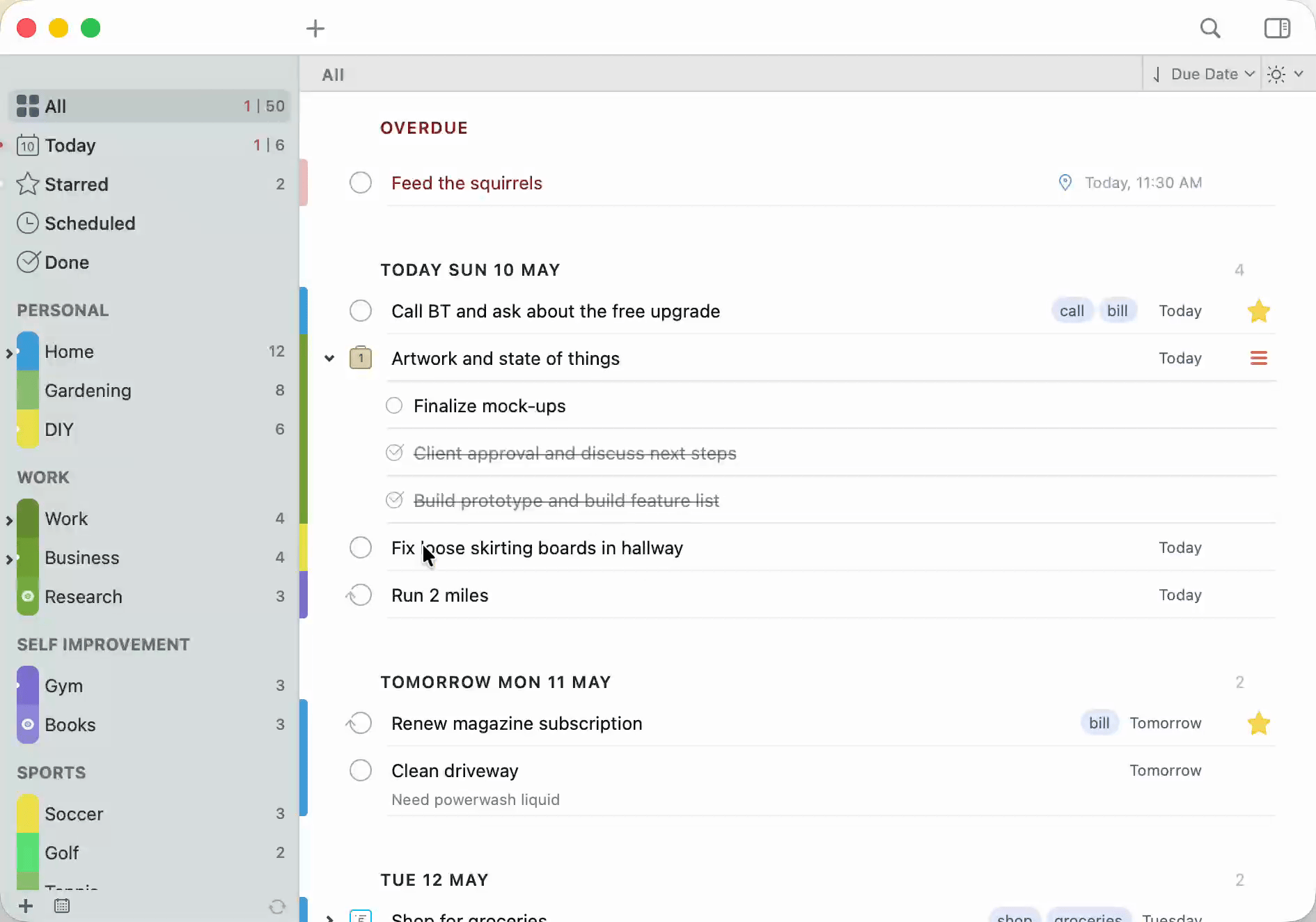
Selecting Tasks
⌘-click to add tasks to the selection one at a time.⇧-click to select a contiguous range.⌘Ato select all visible tasks. Selected tasks highlight together and act as one, so every command below applies to the whole selection.
Drag and Drop Targets
Drag the selection onto the part of the window that does what you want:
- Drop on a list in the Lists Panel to move tasks there. Hold
⌥(Option) while dropping to copy instead of move. - Drop on the Today Focus List to set the due date to today.
- Drop on the Scheduled Focus List to schedule a start date.
- Drop on the Starred Focus List to star tasks.
- Drop on the Done Focus List to mark tasks complete.
- Drop on a tag in the Tags panel to apply that tag.
- Drop on a date in the Mini Calendar to set the due date.
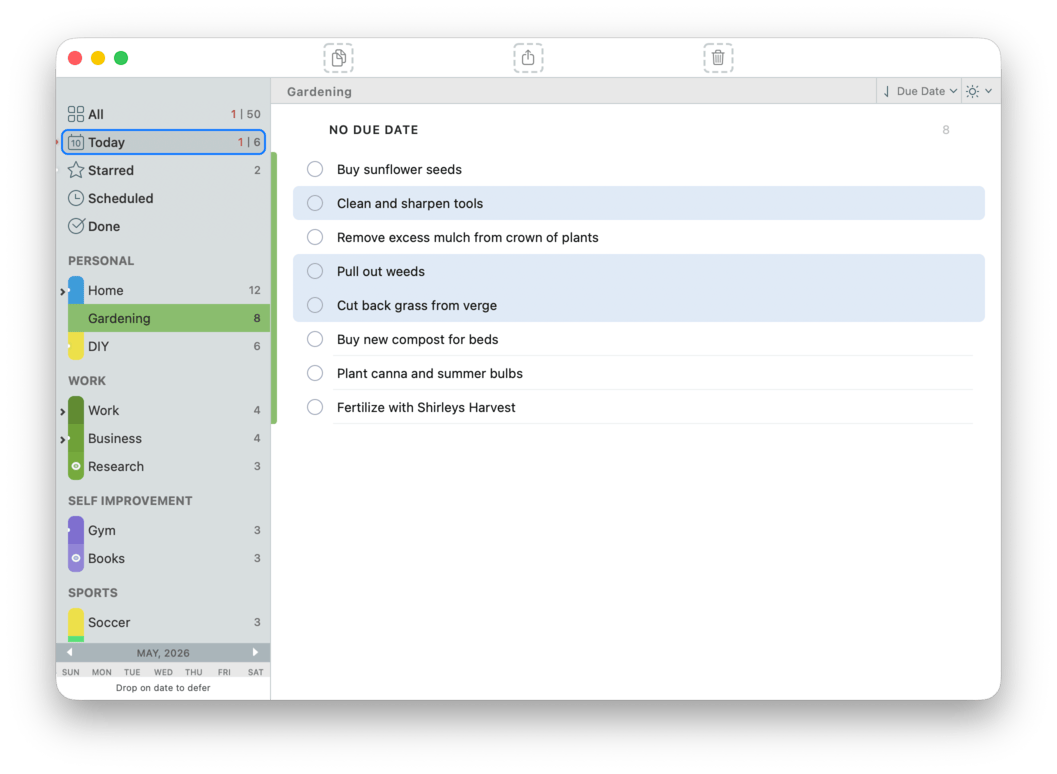
You cannot drag and drop tasks onto a Smart List. Smart Lists are virtual filtered views of real lists, and they don't store tasks themselves. To move a task into a list whose perspective is shown by a Smart List, drop it on the underlying real list instead.
At the start of a review, drag a small selection onto Today, Scheduled, Starred, or Done instead of opening each task. Those Focus Lists are useful drop targets, not just views.
Menu-Bar Equivalents
If you'd rather use the menu, every multi-task action has a menu equivalent:
| Action | Menu |
|---|---|
| Defer | Task > Defer... |
| Schedule | Task > Schedule... |
| Copy | Edit > Duplicate (⌘D) |
| Move | Task > Move |
| Share | Task > Share |
| Tag | Task > Edit Tags or Task > Tag... |
| Delete | Edit > Delete |
Move To and Copy To Submenus
Right-click your task selection and 2Do shows two submenus that expand into your full list structure:
- Move To ▸: moves the selected tasks to another list.
- Copy To ▸: drops a copy of the selected tasks into another list, leaving the originals where they are.
Both submenus show your list groups as headers and each list as a colored-bullet item. Choose a list and the tasks land at that list's root.
When a list already contains projects or checklists, that list becomes a nested submenu. The first item is the list itself (move or copy to the list's root); below a separator, each project and checklist inside it is listed. Pick one to move or copy the selected tasks directly into that project or checklist, as its children.
These submenus are context-menu only, with no keyboard shortcut. Focus Lists, Smart Lists, and archived lists aren't offered as destinations, and locked or read-only lists appear disabled.
Keyboard Shortcuts for Multi-Task Actions
Most multi-task operations have a single-letter keyboard shortcut, with no modifier required when the Task List has focus and one or more tasks are selected. They work the same way on a single task or a multi-selection.
Dates
| Key | Action |
|---|---|
D | Defer...: pick a relative offset (Today / Tomorrow / a named weekday / Next Week / Custom) |
K | Schedule...: pick a specific date |
T | Due Today |
Y | Due Tomorrow |
⌃T | Start Today |
E | Due Time... |
X | Duration... |
. / , | Add a Day / Subtract a Day to the Start Date |
] / [ | Add a Day / Subtract a Day to the Due Date |
⇧. / ⇧, | Add a Week / Subtract a Week to the Start Date |
⇧] / ⇧[ | Add a Week / Subtract a Week to the Due Date |
⌥, | Remove Start Date |
⌥[ | Remove Due Date |
⇧⌘[ | Remove Due Time |
Status, Priority and Star
| Key | Action |
|---|---|
⌘. | Mark As Completed |
⌥⌘. | Mark As Not Completed |
S | Star |
⌃S | Unstar |
0 / 1 / 2 / 3 | Priority None / Low / Medium / High |
= / - | Increase / Decrease Priority |
Tag, Move, Convert
| Key | Action |
|---|---|
L | Tag... |
⌥L | Untag... |
M | Move... |
⌥⇧⌘1 | Convert To a Task |
⌥⇧⌘2 | Convert To a Project |
⌥⇧⌘3 | Convert To a Checklist |
Editor Quick-Jumps
When a task is selected, these shortcuts open the editor pre-focused on a specific field, which is handy when you want to change one thing across many tasks rapidly:
| Key | Field |
|---|---|
⌘E | Edit Note |
⌘' | Edit Alerts |
⌘/ | Edit Dates |
⌥⌘0–⌥⌘3 | Set Priority None / Low / Medium / High |
⌘R | Edit Tags |
⌘B | Edit Action |
⌘G | Edit Location |
⌘; | Edit Recurrence |
⌘L | Edit List (move) |
⌃⌥R | Remove All Tags |
Other Useful
| Key | Action |
|---|---|
⌘D | Duplicate selected tasks |
⌘⌫ | Delete |
Spacebar | Quick Look (preview without opening the editor) |
P | Perform Action (call, email, open URL, etc.) |
U | Open Links found in notes |
F | Quick Find (jump to a task by title within the current list) |
Three keys do most of the daily work: D (defer), K (schedule), S (star). Combine with multi-select (⌘-click or ⇧-click) and you can rip through a long list in seconds.
Batch Schedule and Defer
For finer control over many tasks at once, select the tasks first, then use Task > Defer... (D), Task > Schedule... (K), or Task > Duration.... 2Do opens a batch date dialog for the selection, where you can:
- Pick a start date and/or due date.
- Adjust by a relative amount (push everything by 3 days).
- Reset alarm offsets. Useful for shifting an entire project after a delay, or pushing a backlog of overdue tasks onto next week.

Adjusting Priorities in Bulk
Right-click any selection → Task > Priority > Increase Priority / Decrease Priority, or just press = / - (bare keys) when the Task List has focus. Each step moves all selected tasks one level up or down. Or set a specific level directly: bare 0, 1, 2, 3 for None / Low / Medium / High.
Hover over a single task and click the priority dot, and a small menu opens with the four levels; pick one and the task updates in place, no editor required.
Sharing Tasks
The word sharing here means "send a copy of these tasks to somebody else", not collaborative editing (2Do doesn't offer real-time co-editing of tasks).
Two routes:
- Edit > Copy (
⌘C): copies a plain-text representation of the selected tasks to the clipboard. Paste into Mail, Messages, Notes, or anywhere that accepts text. - Task > Share: opens the macOS Share menu with the selected tasks pre-bundled. Targets include Mail, AirDrop, Messages, and any app installed that registers a Share extension.
Both work on a single task or a multi-selection. The recipient gets the task content, not a live link, so changes you make to your copy after sharing don't propagate.