Tags
Tags are 2Do's way of attaching context to a task that doesn't depend on which list it's in. They're the workhorse for any GTD-style workflow on 2Do.
Tagging a Task
- In the editor: start typing in the Tags field. It suggests matching tags as you type and turns each one you accept into a chip (see The Tag Entry Field below).
- In the Tags panel (right utility panel): drag a tag from the panel onto a task in the list, or drag a selection of tasks onto a tag to tag them all at once. Drop tasks onto a tag group and the tags the group is currently showing are applied, so the panel's eye filter changes what a drop does. The default container that holds tags without a group doesn't accept drops.
- Right-click a task: choose Edit Tags or Tag....
- Multi-select: select many tasks and right-click → Tag... to apply the same tag to all of them (see Batch Tagging below).
- While typing a new task: write the tag in the title as
#errandsand Natural Language Input adds it for you. A word starting with#, with spaces around it, becomes a tag. You can use a new tag name without creating it first. Add as many as you like, as inBuy milk #errands #shopping. Tags run together, such as#sales#urgent, stay in the title as plain text. To remove a tag, edit the field and delete it, or right-click → Untag....
The Tag Entry Field
The editor's Tags field is a tokenized field with live auto-completion. As you type, 2Do suggests matching tags from the ones you already use. Press Return (or click a suggestion) to accept one, or Tab to lock in what you've typed. Each accepted tag becomes a chip, and the chips stay in the order you entered them.
The suggestions are accent-tolerant: typing plain letters like cafe still finds an accented tag such as café. Tags already on the task are left out of the suggestion list so you don't add duplicates.
Batch Tagging Multiple Tasks
Select several tasks and right-click → Tag... (also Task > Tag..., or press L) to change all of their tags at once. The dialog gives you two ways to apply what you type:
- Append: adds the entered tags to each selected task (creating any that don't exist yet) while leaving their current tags in place.
- Replace: swaps every existing tag on the selected tasks for the ones you enter. Leave the field empty and choose Replace to clear all of their tags.
To take tags away instead, right-click → Untag... (also Task > Untag..., or press ⌥L) and enter the tags to Remove from the selection.
The Tags Panel

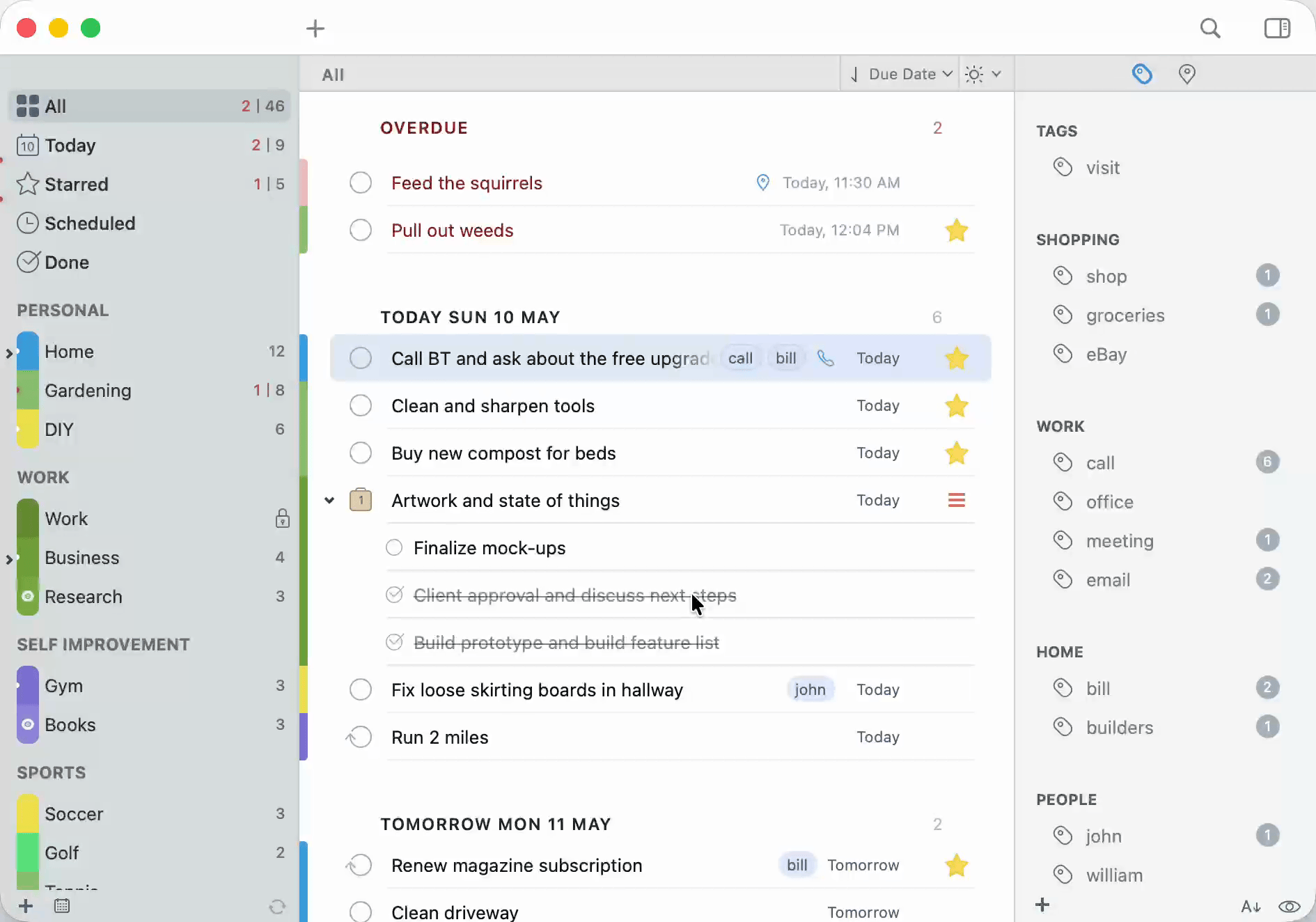
Open the right utility panel and switch to Tags to see your tags, each with a count of tasks. By default the panel lists all of them.
Clicking a tag row selects it; clicking the name of an already selected row starts a rename. To filter the Task List by a tag, click the tag's icon at the left of its row, or select the row and press Space. Filter by another tag to add it to the filter; combine as many as you like, and repeat on a filtering tag to take it back out.
The panel's footer holds a small eye chip that limits the panel to the tags used by the tasks currently on screen, so if tags seem to have gone missing, check this first. Alongside it, a sort chip flips Tag Sorting between Alphabetically and Manually. In manual mode, drag tags into whatever order suits you.
Showing or Hiding Tag Names
By default, tasks in the main list show their tag names as small colored bubbles. If you'd rather keep the list clean, turn off 2Do > Settings > Appearance > Task List > Always show tag names. Rows then hide their tag names (a small indicator still shows that a task carries tags), and you can hold the Option (⌥) key at any time to reveal every task's tags for as long as you hold it. This preference syncs across your devices via iCloud.
Tag Groups
Tags grow over time. Tag Groups keep them tidy.
- Create a group with File > New > New Tag Group.
- Drag tags into the group; collapse the group with its disclosure triangle when you don't need to see what's inside.
Common grouping patterns:
- Contexts:
home,work,phone,errands,waiting. - People:
boss,spouse,kids. - Energy:
low-energy,deep-work,quick-win. - Status:
blocked,in-review,on-hold.
Pausing a Tag
Any tag in 2Do can be paused. When a tag is paused, every task that carries that tag is hidden from view automatically: All, Today, the list it lives in, search, everything. The tasks are still in your database; they're just temporarily out of sight.
This is the cleanest way to put a whole context on hold without editing individual tasks one at a time.
Pausing and Resuming a Tag
Open the panel with View > Show Tags, then click Tags at the top of the utility panel. Right-click the tag and choose Pause...; the same item reads Resume... once the tag is paused. Paused tags hide their tasks; resumed tags reveal them again. The tag remains in your library either way; only its associated tasks change visibility.
Showing Paused Tasks Without Resuming
To peek at paused tasks without resuming the tag:
- Task > Show Paused: temporarily reveals paused tasks alongside the normal view.
- Task > Show Scheduled & Paused: reveals both paused tasks and tasks hidden by Smart Scheduling.
You can also use the search keyword type: paused to bring paused tasks into search results.
Common Pause Patterns
- Pause
waitingwhile you're on a long flight, and anything blocked on someone else's reply steps out of view. - Pause
homeduring work travel, and chores you can't possibly do yet stop showing up. - Pause a project context (
kitchen-reno) while you wait for materials, then resume when the parts arrive.
Pausing a tag is a snapshot, not a deletion. Resume the tag any time and every paused task reappears exactly where it was.
Sorting and Grouping by Tag
Switch the Task List sort order to Tag from the Sort Bar's sort menu and tasks group under their tags. Useful for an at-a-glance review of where the work sits across contexts.
Each section is labeled with the actual tag names it represents: the task's full set of tags as a comma-separated, alphabetical list. Tasks that carry the same set of tags group together under one section, and any tasks without tags collect under No Tags at the bottom.
Renaming Tags
To rename a tag on Mac, select it in the Tags panel and click its name again, press Return, or right-click → Rename.... Type the new name and the change applies to every task using that tag. Useful when typos sneak in (phone and phpne). A rename to a name that's already taken by another tag is rejected, so tags always stay unique. (Double-clicking an empty area of the panel creates a new tag rather than renaming one.)
Tags in Smart Lists and Filters
Tags are first-class in Smart Lists and temporary tag filtering. You can build Smart Lists such as:
- "All tasks tagged
phonedue in the next 7 days." - "All tasks tagged
waitingwhose tag isn't paused." - "All tasks with at least one tag in the Contexts tag group."
For quick one-off filtering, click a tag's icon in the Tags panel. For saved tag-based views, see Smart Lists. The Focus Filter is a simpler built-in condition menu for quick date, priority, and starred views.