Calendar Events in Lists
See your Apple Calendar events above Today or your other task lists to plan tasks around your appointments. You can also add a task to your calendar to set time aside for it.

What the Day Bar Shows
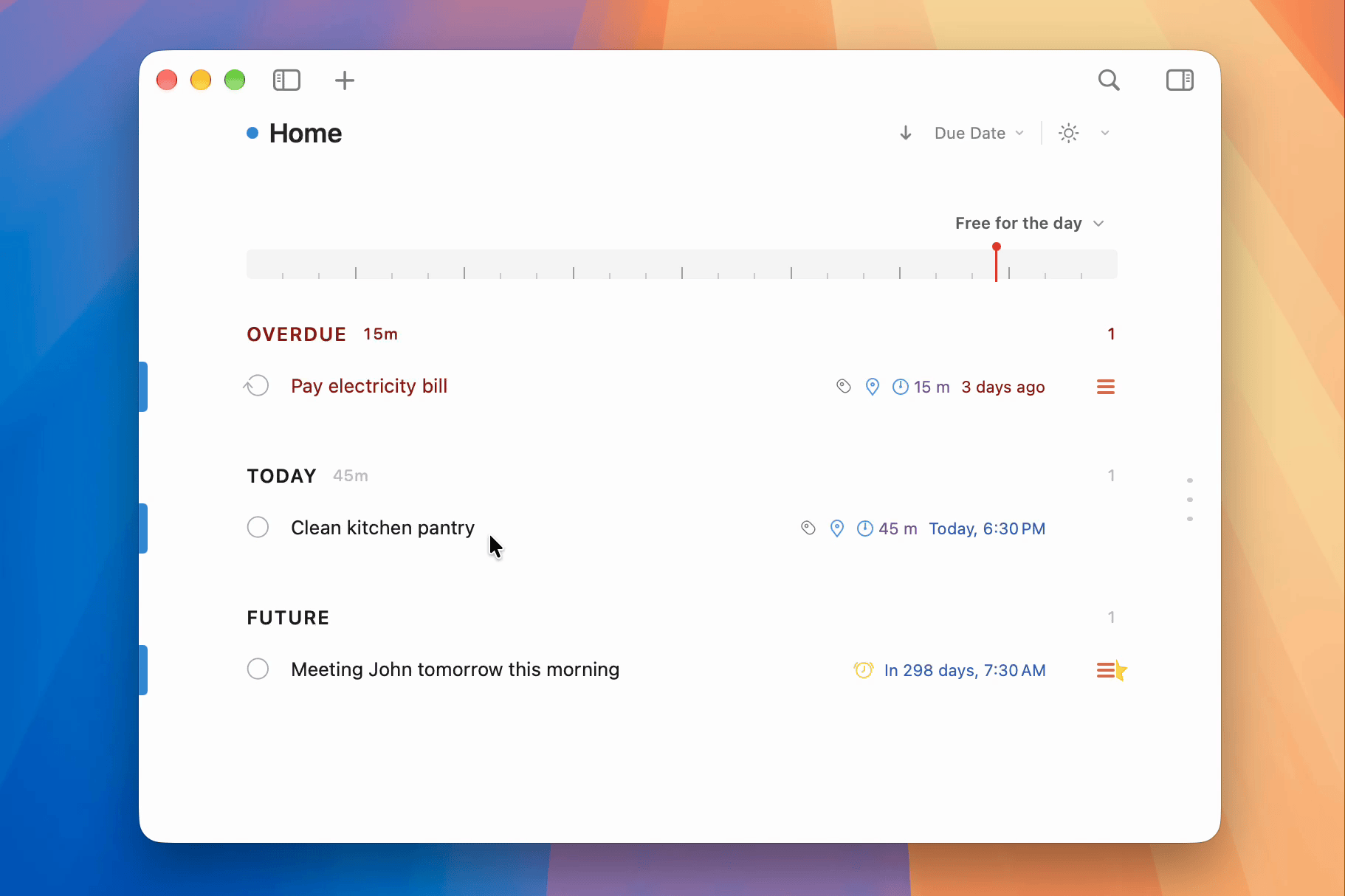
The Calendar Day Bar shows your events above the task list, using 2Do’s light or dark appearance. Events stay separate from your tasks. Drag a task onto the bar to create a calendar event.
The bar shows:
- All-day events in a separate row above the timeline.
- Upcoming and ongoing events, with the next event’s start time or the current event’s end time. This summary stays visible when the bar is collapsed.
The day bar does not appear while you are viewing a project or checklist, using a Smart List, or searching. It stays with the main list view rather than filtered or focused task views.
Turning It On
Open 2Do > Settings > Calendar. Choose where the day bar appears, grant Calendar access, and then choose which calendars to include.
Choose Where It Appears
The Display section gives you two choices:
- Show Calendar Events in Lists shows the day bar above built-in Focus Lists, including Today, and above your regular task lists. This setting is off by default.
- Show Calendar Events in Today shows the day bar only above Today. This setting is on by default.
The two settings are mutually exclusive. Turning on Show Calendar Events in Lists turns off and disables the Today-only setting. To return to showing events only in Today, turn off the Lists setting and then turn on Show Calendar Events in Today. You can also leave both settings off to hide the day bar completely.
Whichever option you choose, the day bar is hidden in project and checklist views, Smart Lists, and search results.
Choose Show Calendar Events in Lists to keep appointments visible as you switch lists, or the Today-only setting to see them just in Today.
Grant Calendar Access
The first time you use the feature, 2Do needs permission to read your calendars:
- Click Allow Calendar Access and approve the macOS prompt.
- If access was previously denied, the pane shows Open System Settings instead. Use it to grant access under macOS privacy settings.
2Do requires full Calendar access to read event details. Write-only access is not enough; if only write access is granted, 2Do reports Full Calendar Access Required and the day bar stays empty.
This feature needs Full Calendar Access, not just "add events" (write-only) permission. If the day bar is blank after you granted access, re-check the permission in System Settings > Privacy & Security > Calendars and make sure 2Do has full access.
Choosing Which Calendars Appear
The Calendars section lists every calendar 2Do can see, each with its color dot, title, and source. Uncheck any calendar you want to keep out of the day bar.
New calendars appear automatically. Return to this list to turn off any you want to hide.
The checklist is available whenever either display setting is on. If you turn both settings off, the checklist is disabled until you choose a day bar placement again.

Switching the View
Use the view button in the day bar to switch between a list of events and a day timeline. The list is the default. You can expand or collapse either view. 2Do remembers both choices and syncs them over iCloud to your other Macs.
The list view shows events and their times from top to bottom:

The day view places events on a timeline:

Click an event to open it in Apple Calendar for editing. Declined invitations appear crossed out.
Browsing Other Days
Expand the day bar, then use its chevron button to show the row of dates. Choose a date from today through the next 30 days to see its events. This changes the day bar only; your task list stays as it is.
2Do remembers whether the date row is open. To mark busy dates, choose None, Dots, or Heat Map under 2Do > Settings > Appearance > Busy Days > Calendar Day Bar.
Closing the date row or collapsing the bar returns it to today. Expanding it again starts from today.
Adding a Task to Your Calendar
To set time aside for a task, add it to your calendar as an event. The event sits next to your appointments in the day bar and in every calendar app that shows that calendar. You can drag the task onto the day bar or use a menu command.
Drag It onto the Day Bar
Drag a task onto the day bar. A highlight and dashed outline mark the drop area. Release the task to open Add to Calendar below the bar.
You can drop one task at a time. The bar must have Calendar access and be showing events.
Use the Menu
Select a task, then choose Task > Add to Calendar... in the menu bar, or right-click the task and choose Add to Calendar.... The dialog opens below the task.
The command works whether or not the day bar is showing, so you can use it with the day bar turned off. If 2Do doesn't have Calendar access yet, macOS asks for it first. If access was turned off, 2Do offers to open System Settings so you can turn it back on.
Fill In the Event
2Do fills in the dialog from the task, and you can change any of it before you add the event:
- Title: the task's title.
- All-day: on for tasks that have dates but no times. Switching it keeps the day you picked.
- Starts and Ends: the event's time, or its first and last day when All-day is on.
- Calendar: every calendar that accepts new events, grouped by account. It starts on the default calendar for new events you chose in Apple Calendar's settings.
- Include Notes: copies the task's notes into the event. It appears only when the task has notes, and it starts off.
Click Add to save the event, or Cancel to close the dialog. Clicking anywhere outside the dialog also closes it without adding anything. The task itself doesn't change.
How the Time Is Chosen
The dialog starts from the task's dates:
| The task has | The event |
|---|---|
| A start time and a later due time on the same day | Runs from the start time to the due time. |
| A start time | Starts then and lasts the task's duration. |
| A due time only | Ends at the due time and starts the task's duration earlier. Without a duration, it starts at the due time. |
| Dates without times | Is an all-day event from the start date through the due date. |
| No dates | Goes on the day the day bar shows, or today when the bar is hidden. |
Where the task has no duration, the event lasts 15 minutes. An event for a task without dates starts at the next quarter hour when it goes on today. On any other day it starts at the time chosen under Default Due Time, which is 9:00 AM unless you changed it.
Editing Calendar Events
To edit an event, click it to open Apple Calendar. 2Do does not edit or delete existing events; it only creates new ones through Add to Calendar.
For more calendar features, see BusyCal, our calendar app for Mac.
If you dismiss the day bar's in-context access prompt, 2Do turns the feature off. You can turn it back on any time from 2Do > Settings > Calendar.
Related Pages
- Mini Calendar is the month view in the Lists Panel for filtering and deferring tasks by date.
- The 2Do Window explains where task lists and the day bar sit in the main window.