Natural Language Input (Type Your Task in Plain Words)
Type a new task the way you would say it out loud and 2Do fills in the details for you. No tabbing between fields, no pickers to open: write the sentence, and the date, time, repeat, alert, duration, priority, tags, list, and saved location come with it.
What It Does
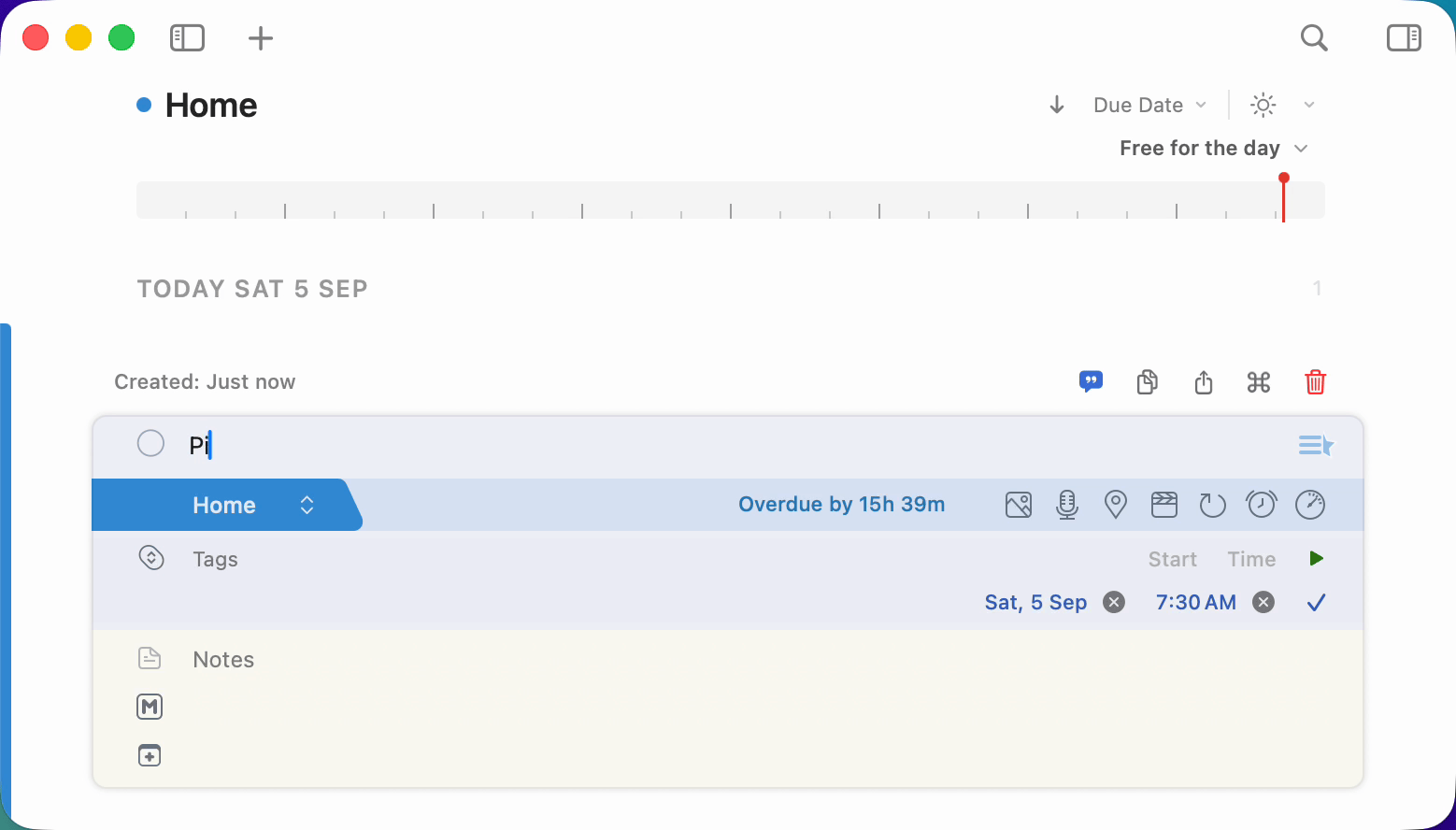
As you type a new task's title, 2Do marks the details it recognizes with a soft capsule behind the words and fills in their fields as you type. A tag you type appears after you add a space, leave the title, or save. The text stays fully editable, so you can go back and change any word at any point.
When you save, the words 2Do used are taken out of the title, leaving just the task:
Call the dentist tomorrow at 3pm
=> saved as "Call the dentist", due tomorrow at 3:00 PM
Everything 2Do fills in is an ordinary field on the task, so you can adjust any of it afterwards in the usual way.
Where It Works
Detection runs while you type the title of a new task, in two places:
- The task editor in the main 2Do window.
- Quick Entry, including text that is already waiting in the field when the window opens.
It applies to new tasks only. Editing the title of a task you saved earlier leaves that task's fields exactly as they are.
Turning It On and Off
In Settings
Two switches under 2Do > Settings > Tasks > New Tasks control it, and both are on out of the box:
- Detect dates and details as you type in Quick Entry
- Detect dates and details as you type in the task editor
Turn either one off and that surface goes back to plain typing: your title is saved exactly as written and no fields are filled in.
The two switches appear only when your Mac is set to a language 2Do can read. See Languages.
For a Single Task
The task editor's top bar carries a chip that switches detection off for the task you are typing, without touching your Settings. Its tooltip reads Stop detecting dates and details as you type while detection is on, and Detect dates and details as you type once it is off.
Turning detection off puts back the values 2Do filled in, so the task is left as plain typing would have left it. Anything you changed yourself in a field stays as you set it, even when 2Do had rewritten the matching word in the title. Tags added by detection are dropped, and your title text stays as typed. Switch it back on and 2Do reads the title again in one pass.
Use the chip for the rare task where you would rather type everything by hand.
What You Can Type
The examples below are English. Each supported language has its own supported words and word order. Not every everyday phrase is recognized.
Write the task first and the details last. Collect the parcel tomorrow at 3pm #errands reads the way you would say it, and it keeps the saved title clean.
Dates
Call the plumber today
=> due today

Book a car service tomorrow
=> due tomorrow

Collect the parcel day after tomorrow
=> due the day after tomorrow

Submit the timesheet Friday
=> due this coming Friday

Book the dentist next Friday
=> due Friday of next week

Plan the family trip next week
=> due Monday of next week

Renew the gym membership next month
=> due the 1st of next month

Pay the school fees on 5 September
=> due 5 September

Order the textbooks September 5th
=> due 5 September

Send the birthday card on the 5th
=> due the next 5th of the month

File the insurance claim 9/5
=> due 5 September, or 9 May, depending on your date order

Water the plants in 3 days
=> due three days from today

Review the household budget in 2 weeks
=> due two weeks from today
9/5 means September 5 with month/day order and May 9 with day/month order.
A date on its own is always the due date. To set a start date instead, use one of the start words.
Times
Call mum at 3pm
=> due at the next 3:00 PM

Take the medicine at 15:30
=> due at the next 3:30 PM

Break for lunch at noon
=> due at the next 12:00 PM

Lock the front door at midnight
=> due at the next 12:00 AM

Ring the clinic tomorrow at 3pm
=> due tomorrow at 3:00 PM
If the task has no due date, a time means its next occurrence: type 3pm at nine in the morning and the task is due today, type it at six in the evening and it is due tomorrow. If a due date is already set, the time uses that date.
Ranges
Two dates or two times joined together give the task a start and a due date.
Work on the science project 19 July to 21 July
=> starts 19 July, due 21 July

Study session 1pm-3pm
=> starts 1:00 PM, due 3:00 PM

Join the food drive 9am-11am tomorrow
=> starts tomorrow 9:00 AM, due tomorrow 11:00 AM

Family visit September 5-7
=> starts 5 September, due 7 September
A start word can lead the range, and to, until, till, through, or a dash can join the two ends. Each end can carry its own time.
Project starts tomorrow 2pm - 8 September 3:40pm
=> starts tomorrow 2:00 PM, due 8 September 3:40 PM

Field trip from 19 July until 21 July
=> starts 19 July, due 21 July

Exam prep starting Monday 9am through Friday 5pm
=> starts Monday 9:00 AM, due Friday 5:00 PM
Start and End Words
A start word in front of a date makes that date the start date and leaves the due date unchanged. The start words are starting, starts, start, begins, beginning, and from.
Work on the report starting tomorrow
=> starts tomorrow, no due date added

Repaint the fence starts Monday
=> starts Monday

Volunteer shift from 5 September
=> starts 5 September
An end word sets the due date. After a start date, use ending, ends, finishes, finishing, or due, optionally preceded by and. You can also write is due or and is due.
Tidy the store room starting tomorrow ending Friday
=> starts tomorrow, due Friday

Prepare the workshop starting tomorrow at 3pm ending Friday at 5pm
=> starts tomorrow 3:00 PM, due Friday 5:00 PM

Essay begins Monday, due Friday
=> starts Monday, due Friday

Garden clean-up starts Saturday 9am and finishes Sunday 4pm
=> starts Saturday 9:00 AM, due Sunday 4:00 PM
Without an earlier start date, the other end words stay in the title as ordinary text; due is still read and removed. Finish report ending Friday is due Friday and saves as Finish report ending.
Capsules show the values 2Do picked up. Some helper words, including starting and ending, are removed with the detected date even though only the date is marked.
Repeats
Take vitamins tomorrow every day
=> due tomorrow, repeats daily

Submit the timesheet every weekday
=> due the next weekday, repeats Monday to Friday

Team review every Monday
=> due the next Monday, repeats weekly on Mondays

Change the water filter Friday every 2 weeks
=> due Friday, repeats every second week

Pay the rent every month on the 15th
=> due the 15th, repeats monthly

Renew the membership every year on September 5
=> due 5 September, repeats yearly

Visit the parents every Monday and Wednesday
=> due the next Monday or Wednesday, repeats weekly on both days
The date can come before the repeat words instead, so Renew the membership September 5 every year works just as well.
A repeat needs a date to count from. 2Do can infer one from some rules; otherwise include a date or time. See Repeating Tasks for the full set of rules.
Alerts
Add an alert ahead of the due time by writing how much warning you want.
Ring the clinic tomorrow at 3pm alert 30m
=> due tomorrow 3:00 PM, alert 30 minutes before

Submit the report Friday at 5pm alarm 1 hour before
=> due Friday 5:00 PM, alert one hour before

Collect the cake Saturday at 4pm alert 10m, 30m
=> due Saturday 4:00 PM, alerts 10 and 30 minutes before
See Alarms and Nagging for alert styles, sounds, and repeating alerts.
Duration
Put the length in square brackets.
Review the lesson plan [45m]
=> duration 45 minutes

Deep clean the kitchen [2h]
=> duration 2 hours
Paired with a due date and time, a duration also gives the task a head start before its deadline. See Dates and Durations.
Priority and Star
Write the marker as a word of its own.
Buy milk !
=> Low priority

Return the library books !!
=> Medium priority

Pay the electricity bill !!!
=> High priority

Call mum *
=> starred

Send the school form !!! *
=> High priority and starred
In English, leave a space before the mark, so Say hello! keeps its exclamation mark. Chinese, Japanese, and Korean text can place the mark directly after a character.
Tags
A word starting with #, with spaces around it, becomes a tag. Add as many as you like.
Plan the week #work
=> tag work

Buy milk #errands #shopping
=> tags errands and shopping
Tags run together, such as #sales#urgent, are left in the title as plain text. See Tags.
Lists
Type a slash followed by the start of a list name to file the task there. 2Do matches your lists as you type, ignoring capitals and spaces, and the list picker follows along. A closing slash is optional.
Buy milk /errands
=> saved to the Errands list

Clear out the loft /homeproj
=> saved to the Home Projects list

Book the dentist /Health/ next Tuesday
=> saved to the Health list, due next Tuesday
If nothing matches, the slash and the words after it stay in the title and the task keeps its current list. If two of your lists share a name, 2Do picks the one shown first in the list picker; choose the other one from the picker if you meant it. Web addresses and file paths are left alone. A list whose name ends in a slash is matched by typing the start of its name.
Locations
Type @ followed by the name of a location you have already saved in 2Do. Spaces and capitals do not matter, the match appears as soon as the name is complete, and it stays while you keep writing after it.
Collect the prescription @ Pharmacy
=> location Pharmacy

Meet Amina @centrallibrary tomorrow at 4pm
=> location Central Library, due tomorrow 4:00 PM

Drop the books at @ Central Library and buy bread
=> location Central Library, title "Drop the books at and buy bread"
The whole name has to match: @central on its own sets nothing. When your saved names overlap, the longest one that fits wins. If the name is not one of your saved locations, 2Do sets no location and leaves the words in the title. See Nearby and Locations for saving a location and for what one does once it is set.
Try These
Copy any of these into a new task and watch the fields fill in.
Pick up the kids from school tomorrow at 3pm #family
=> due tomorrow 3:00 PM, tag family

Pay the electricity bill on 5 September !!!
=> due 5 September, High priority

Book a car service next Friday at 9am alert 1h
=> due Friday of next week 9:00 AM, alert one hour before

Read to the children every day at 8pm
=> due at the next 8:00 PM, repeats daily

Collect the prescription @ Pharmacy #errands
=> location Pharmacy, tag errands

Call the landlord tomorrow at 11am !! *
=> due tomorrow 11:00 AM, Medium priority, starred

Deep clean the kitchen Saturday [2h] #home
=> due Saturday, duration 2 hours, tag home

Submit the timesheet every weekday at 5pm
=> due the next weekday at 5:00 PM, repeats Monday to Friday

Plan the family trip next week /Home Projects/
=> due Monday of next week, saved to Home Projects

Study for the exam 9am-11am tomorrow #study
=> starts tomorrow 9:00 AM, due tomorrow 11:00 AM, tag study

Water the plants Saturday every 2 weeks
=> due Saturday, repeats every second week

Book the dentist in 3 days #health
=> due in three days, tag health

Drop the donation off Friday at 1pm #community
=> due Friday 1:00 PM, tag community

Work on the science project 19 July to 21 July !!
=> starts 19 July, due 21 July, Medium priority

Paint the garden shed starting Saturday #home
=> starts Saturday, no due date added, tag home

Revise for the maths test from Monday until Friday #study
=> starts Monday, due Friday, tag study

Redecorate the hallway begins 5 September, due 8 September !!
=> starts 5 September, due 8 September, Medium priority

Renew the car insurance every year on September 5 #home
=> due 5 September, repeats yearly, tag home
Keeping a Word Literal
Sometimes a word that looks like a date really is part of the task. Wrap it in double quotes and 2Do leaves it alone. The quotes are not marked, and they come off when you save.
Read "tomorrow"
=> saved as "Read tomorrow", with no date

Read "tomorrow" tomorrow
=> saved as "Read tomorrow", due tomorrow
Extra spaces between words do not affect detection. Spacing elsewhere in the title is preserved; spaces around removed details are tidied.
Use quotes for the odd task whose title really does contain a date word.
Changing a Detail Afterwards
None of it is locked in. While the task is still open:
- Change a date, time, or duration in its own field and 2Do updates the matching text in the title. Changing one end of a range can rewrite the whole range. If 2Do cannot read the replacement, it removes the detected text and keeps your field edit.
- Change a repeat, alert, priority, star, list, location, or tag by hand and 2Do takes the words it detected out of the title instead.
- Delete the detected words to restore the earlier value. If you changed that field yourself, your most recent field choice stays.
- Clear a field by hand and 2Do leaves it clear, and takes the matching words out of the title.
Languages
Natural Language Input reads English, German, Spanish, French, Italian, Dutch, Japanese, Korean, Chinese (Simplified), and Russian. Each supported language has its own supported words and word order. Not every everyday phrase is recognized.
If your Mac is set to a language that is not on the list, the feature stays out of the way: the Settings switches and the editor chip do not appear, and titles are saved exactly as typed.
Reference
| What you type | What it sets | Example |
|---|---|---|
today, tomorrow, day after tomorrow, Friday, next Friday | Due date | Call the plumber tomorrow |
next week, next month | Due date: Monday of next week, or the 1st | Plan the trip next week |
5 September, September 5th, on the 5th, 9/5 | Due date. 9/5 is September 5 with month/day order, May 9 with day/month order | Pay the fees on 5 September |
in 3 days, in 2 weeks | Due date counted from today | Wash the towels in 3 days |
at 3pm, 15:00, 3:30pm, noon, midnight (or 12pm, 12am) | Due time | Ring the bank at 3pm |
19 July to 21 July, 1pm-3pm, from Monday until Friday, starts tomorrow 2pm - 8 September 3:40pm | Start and due together | Homework help 1pm-3pm |
starting, starts, start, begins, beginning, from before a date | Start date | Sort out the garage starts Monday |
ending, ends, finishes, finishing, due after a start date, optionally with and, or written as is due | Due date. Without a start date, only due is read | Work on report starting tomorrow ending Friday |
every day, every weekday, every Monday, every 2 weeks, every month on the 15th, every year | Repeat, counted from a date in the title or one 2Do can infer | Walk after dinner tomorrow every day |
alert 30m, alarm 1h, alert 10m, 30m | Alerts before the due time | Call at 3pm alert 30m |
[45m], [2h] | Duration | Iron the shirts [45m] |
!, !!, !!! | Priority Low, Medium, High | Pay the bill !!! |
* | Star | Reply to the school * |
#errands | Tag | Buy milk #errands |
/Home Projects/ | Moves the task to that list | Clear out the loft /Home Projects/ |
@ Pharmacy | A location you have already saved in 2Do | Pick up the vitamins @ Pharmacy |
"tomorrow" | Keeps the word as plain text | Practice the word "tomorrow" |