Search and Jump Bars
Most apps have one find field. 2Do has five, each tuned for a different kind of "find me this" moment. There's no single right one; knowing what each is for lets you find things whichever way fits how you work.
| Surface | Shortcut | Purpose |
|---|---|---|
| Global Search Bar | ⌘F | Filter the task list by Smart Filter syntax, and save the filter as a Smart List. |
| Task Find Bar | F (bare) | Jump the selection to a task by title within the current list. No filtering. |
| List Jump Bar | J (bare) | Jump to a list in the Lists Panel by name. |
| Tag Search Bar | / (bare) | Find a tag in the Tags panel by name. |
| Quick Open | ⇧⌘O | Jump to any task, list, project, or sub-task anywhere in the app. |
The bare keys work from anywhere in the main window, as long as you aren't typing in a text field. You don't even need the target panel open: press J with the sidebar hidden, or / with the Tags panel closed, and 2Do reveals the panel for the search and puts things back the way they were when you're done.
Three bare-letter shortcuts cover most "find me X" moments: F for tasks, J for lists, / for tags. They work from anywhere in the main window; if one isn't responding, you're probably typing in a text field, so press Esc or click out first.
The three in-place bars share one behavior model, so learning one teaches all three:
- Type and matching items highlight as you go; the first match is focused right away.
↑/↓move between matches, wrapping at the ends.Returncommits the focused match and closes the bar.Esccancels.- An exact-match toggle on the bar switches between loose and exact word matching; each bar remembers its own setting.
The Global Search Bar lives in the toolbar; the three jump bars appear in-place over the area they search. The visual difference is intentional: the toolbar one is "filter and save", the in-place ones are "jump and go".
Global Search Bar: Filter and Save
The Global Search Bar is the magnifying-glass field in the toolbar. It's the entry point to Smart Filters: anything you can describe in the search syntax can be applied as a one-off filter or saved as a permanent Smart List.
⌘F: open the Global Search Bar. Clicking the magnifying glass expands and collapses it too.- The search bar auto-collapses when you click away; it stays out of your face when you're not searching.
- Click the filter button in the bar (or press
⌥⇧⌘F) for Find Options: Search Presets, date filters (a fixed range, a rolling range, or tasks without a due date), the Soundex switch, whether Scheduled tasks are included, and the search scope. - Click the
+button at the end of the field to save the current filter as a Smart List. When you're viewing a Smart List and refining its filter, the same button becomes an update button instead. ⌥⌘Ftoggles the Search Scope between the current list and All Lists.
With Soundex on, 2Do can find tasks even when the spelling is not exact. For example, plumver can find plumber, Steven can find Stephen, and alexnder can find Alexander.
With Soundex off, the same field supports Full Text Search. You can require words with new job, exclude words with new job -find, match either word with Call OR new, or use wildcards such as new* (prefix), *book (suffix), and *ject* (contains).
Beyond free text, the bar understands nine reserved keywords that filter by a specific task property: type:, tags:, taggroups:, locations:, lists:, groups:, modified:, created:, and completed:. Combine them freely; sections are AND-ed by default, and a standalone OR before a keyword branches the query. For example:
type: hiprio AND duethisweek
lists: Work, Home type: duetoday
type: overdue OR tags: urgent
For the complete keyword reference, the type: preset catalogue, the AND/OR model, and dozens of copy-pasteable recipes, see Smart Lists, Smart Filters, and Search.
To include both tasks due today and overdue tasks, use type: duetoday OR overdue, or combine the two Due Date rules with Any. See Combine Today and Overdue for the full steps and how to check for a date range that could still exclude older tasks.
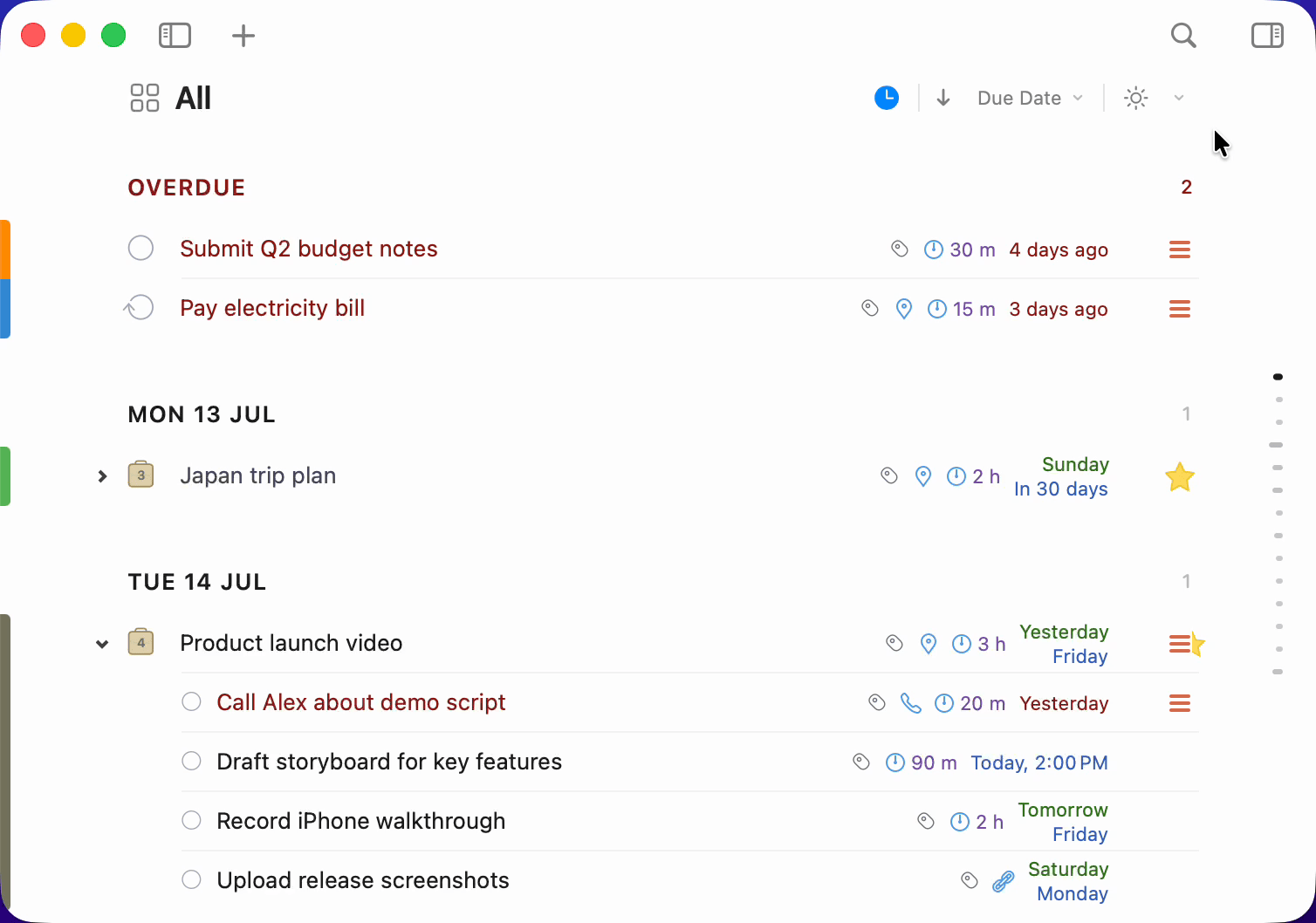
Task Find Bar: Jump to a Task by Title
When you know the task is there and you just want to navigate to it, not filter the list down to it, use the Task Find Bar.
Quick Open can jump to a task too, but it lands you wherever that task lives. The Task Find Bar keeps you in the view you've set up: same sort order, same neighbors, everything else due around the match still in sight. When the tasks around the one you're finding are part of the decision, this is the one to reach for.
- Bare
F: opens the Go to... bar at the bottom of the Task List. Or View > Task Find Bar... from the menu. - Type any part of the task title. Matching tasks highlight, and the selection moves to the first match right away.
↑/↓step through the other matches, wrapping around at the ends.- If a match is a sub-task of a project or checklist, 2Do automatically expands the parent so it's visible.
- Press
Returnto land on the focused match and close the bar, orEscto close it where you are; either way the selection stays put.
This is the fastest way to navigate inside a long list or a deep project. The list doesn't change shape; only your selection moves.
Task Find vs. Global Search
A small but important distinction:
- Global Search (
⌘F) filters: the list collapses to just the matching tasks, hiding everything else. - Task Find (
F) jumps: the list keeps everything visible, the selection moves to the first match.
Use Search when you want to work on a subset. Use Find when you want to go to one specific task.
List Jump Bar: Jump to a List by Name
Got a sidebar with dozens of lists tucked into groups? The List Jump Bar lets you skip the scrolling and pick a list by name.
- Bare
J: opens the List Jump Bar at the bottom of the Lists Panel. Or View > List Jump Bar... from the menu. If the sidebar is hidden, 2Do reveals it for the search and hides it again afterwards. - Type any part of the list name. Matching lists highlight in place, and collapsed groups holding a match expand temporarily so nothing stays out of sight.
↑/↓move between matches; pressReturnto switch to the focused one.Esccancels, and any group expanded just for the search folds back.
Regular lists, Smart Lists, built-in Focus lists, and even the projects and checklists shown under a list's disclosure triangle all match by name. Groups themselves aren't jump targets; they simply open up to reveal the matches inside.
The List Jump Bar keeps you in the sidebar, where you can land on a list and keep exploring its neighbors. When you already know exactly which list, task, or sub-task you're after, Quick Open takes you straight there from anywhere. Neither is the "right" way; 2Do simply lets you find things however suits the moment.
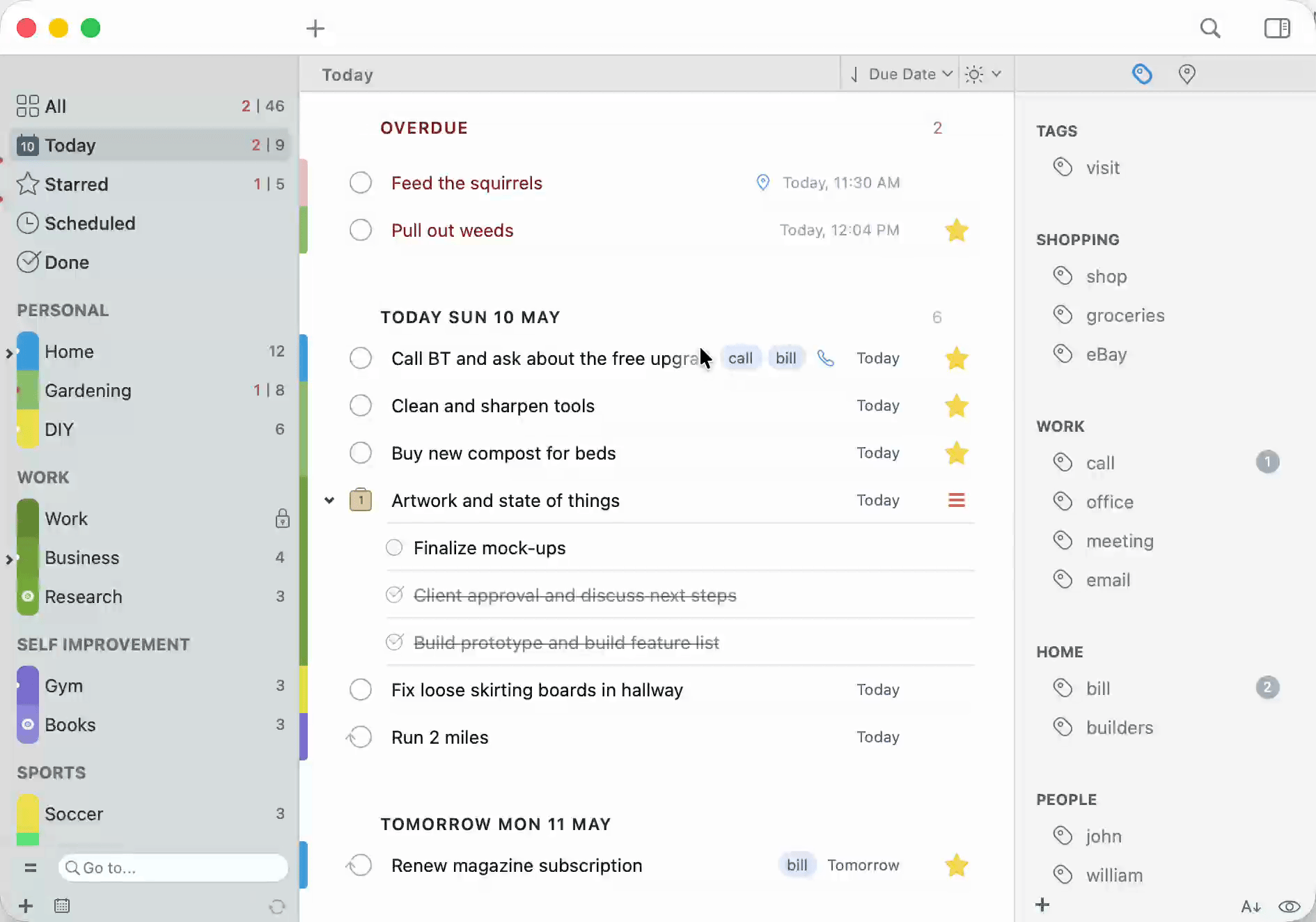
A Companion to the Disclosure Triangle
If you frequently jump into a project or checklist rather than just to its parent list, pair the List Jump Bar with the disclosure triangle that appears next to any list containing projects/checklists. See Lists and List Groups: Disclosure Triangle.
Tag Search Bar: Find a Tag by Name
Long tag library? The Tag Search Bar finds a tag in the Tags panel by name, which is useful when you want to filter by a tag or apply one but can't see it in the list.
- Bare
/: opens the Tag Search Bar in the Tags panel. Or View > Tag Search Bar... from the menu. If the Tags panel is closed, 2Do opens it for the search. - Type any part of the tag name. Matching tags highlight as you type, with the first match focused.
↑/↓move between matches; pressReturnto select the focused tag.- Or work with a match directly: click a tag to filter the Task List by it, or drag it onto a task (or a selection of tasks) to apply it.
Esccloses the bar and clears the highlights.

Quick Open: Jump Anywhere
The four bars above each live inside a specific panel. Quick Open (⇧⌘O) floats above them all: type a few letters and jump to any task, list, project, or sub-task anywhere in the app, with your recently used tasks and lists offered the moment it opens.

It has a page of its own: Quick Open.