Calendar Events
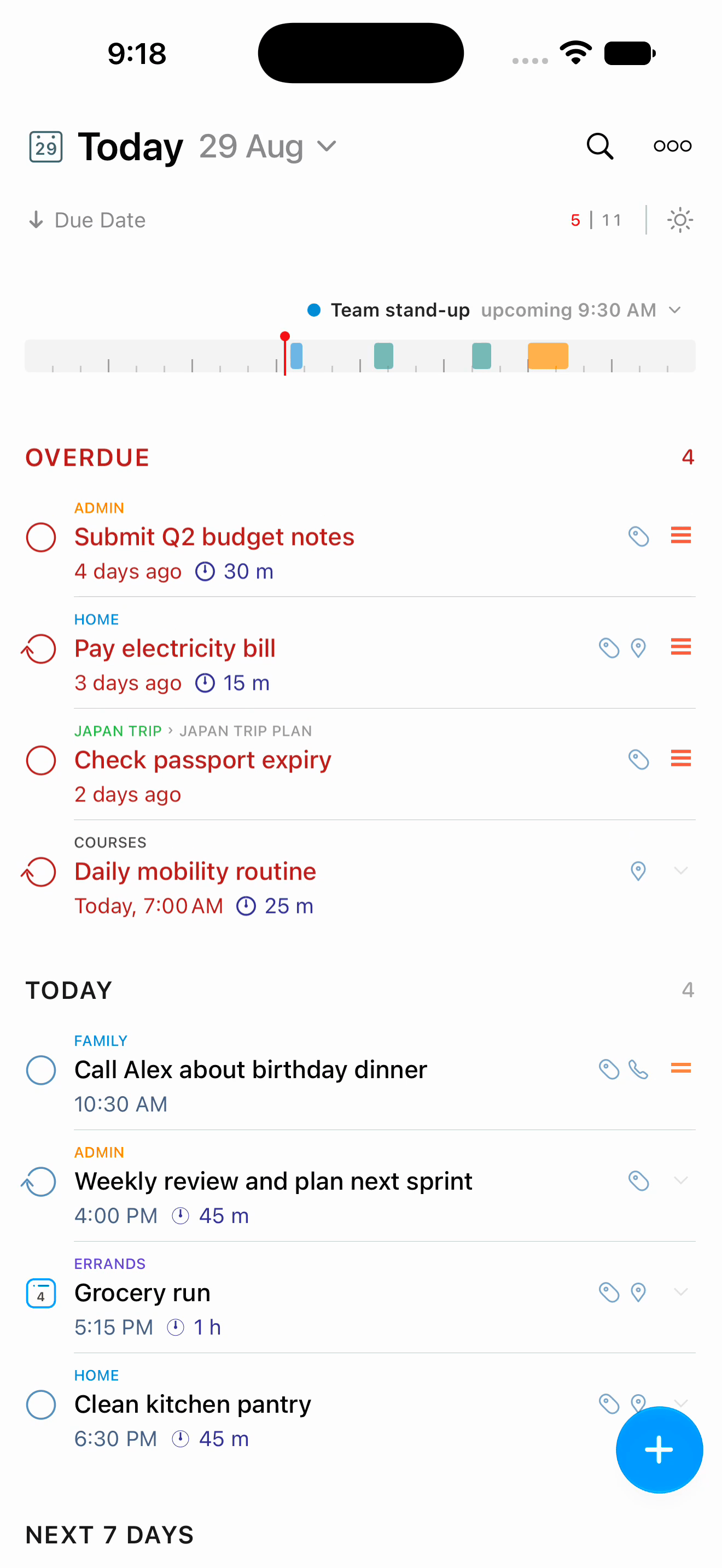
2Do can show your Apple Calendar events right above your tasks, so one glance covers both your appointments and your work for the day. There are two surfaces for this: the Calendar Day Bar above the task list, and the Calendar Events page in the utility panel.
Turning the Day Bar On
Open Settings > Calendar Events. The Display section gives you two switches:
- Show Calendar Events in Lists: Show your Calendar events above Today and your regular task lists.
- Show Calendar Events in Today: Show your Calendar events above the Today task list.
The Today-only switch is unavailable while the broader one is on, since it would have nothing left to add. Leave both off to hide the day bar completely.
Choose Show Calendar Events in Lists if you want your schedule visible as you move around 2Do. Choose the Today-only switch for a quieter workspace, with appointments and tasks together only when you plan your day.
Calendar Access
The first time you use the feature, 2Do needs permission to read your calendars. The Calendar Access row offers Allow Calendar Access, or Open Settings if permission was turned down earlier.
2Do needs full calendar access to read event details. Write-only access is not enough, and the pane then shows Full Calendar Access Required.
If the day bar stays empty after you granted access, check Settings > Privacy & Security > Calendars > 2Do on your device and make sure 2Do has full access rather than add-only access.
Choosing Which Calendars Appear
The Calendars section lists every calendar 2Do can see, each with its own switch. Turn off any calendar you want to keep out.
2Do stores only the calendars you exclude. Calendars that are not listed as disabled are included automatically, so a calendar you add later on your device shows up in 2Do on its own. You only ever need to come back here to hide something.
What the Day Bar Shows
The bar is a strip pinned above your tasks. It draws the selected day's events without mixing them into the list, so your tasks and selection stay task-only. Dragging a task onto the bar adds it to your calendar.
- The summary at the left of the bar carries a chevron. Tap it to expand or collapse the bar, and 2Do remembers which way you left it. Collapsing brings the bar back to today.
- An expanded bar can be drawn two ways, and a control in its header switches between them: a day view laid out like a calendar timeline, or a list of the day's events read top to bottom.
- All-day events appear on their own line so they never crowd the day.
Browsing Other Days
The bar carries a row of dates, running from today through the next 30 days. Tap a date to see that day's events. A chevron control in the header expands the row for a wider view of the month ahead, and 2Do remembers whether you left it expanded. Collapsing it brings the bar back to today.
Each date can carry a busy marking of its own. Set the style under Settings > Appearance > Busy Days > Calendar Day Bar, with the same three choices the rest of the app uses: None, Dots, or Heat Map.
Picking a date in the bar changes only which day's events are shown. It does not filter your tasks. For that, use the mini calendar.
Opening an Event
Tap an event and 2Do opens its details, where you can read and edit it. When a day holds more events than the bar can draw, its overflow control opens that day in the Calendar app.
Where the Day Bar Does Not Appear
The bar stays with ordinary list views. It does not appear in Smart Lists, inside a project or checklist you have opened, or while you are searching.
If you dismiss the access prompt shown inside the bar, 2Do turns both display settings off. Turn them back on any time from Settings > Calendar Events.
Adding a Task to Your Calendar
To set time aside for a task, add it to your calendar as an event. You can drop it on the day bar or use the task's menu.
- Touch and hold a task until it lifts, then drag it toward the top of the list. A soft highlight appears behind the day bar, and a moving dashed outline appears when the task is over it.
- Release the task on the bar.
- If the task has notes, a short sheet asks about them first. Turn on Include Notes to copy them into the event, then tap Continue. Tap Cancel, or anywhere outside the sheet, to stop.
- The new-event screen opens with the task's title and time filled in. Change anything you like, including the calendar, and tap Add.
The bar takes one task at a time, because each event describes a single task. It accepts a task only while it shows your events. The task itself doesn't change.
You can also touch and hold a task, or right-click it on iPad with a pointer, and choose Add to Calendar. Steps 3 and 4 then follow as above, and this works even when the day bar is hidden.
How the Time Is Chosen
The new event starts from the task's dates:
| The task has | The event |
|---|---|
| A start time and a later due time on the same day | Runs from the start time to the due time. |
| A start time | Starts then and lasts the task's duration. |
| A due time only | Ends at the due time and starts the task's duration earlier. Without a duration, it starts at the due time. |
| Dates without times | Is an all-day event from the start date through the due date. |
| No dates | Goes on the day the bar shows, or today when the bar is hidden. |
Where the task has no duration, the event lasts 15 minutes. An event for a task without dates starts at the next quarter hour when it goes on today. On any other day it starts at your default due time, which is 9:00 AM unless you changed it in Settings.
The Calendar Events Page
The utility panel's third page is a full Calendar Events view, on both iPhone and iPad. It lists the selected day's events with their calendar colours, and carries its own row of dates for moving between days.
Two controls sit at the bottom of the page:
- Add Event creates a new event on the selected day.
- Calendars picks which calendars the page shows.
On iPhone, swipe the task list toward the utility panel. On iPad, tap Tags at the bottom of the lists panel. Then choose Calendar Events with the segmented control at the top. See The 2Do Screen.
Related Pages
- Mini Calendar is the month view for filtering and deferring tasks by date.
- The 2Do Screen explains where each panel sits.